8.3 Troubleshooting Different States
SocialAccess displays indicators for the current state of the different components. The display refreshes every five minutes. SocialAccess might not immediately display the change.
The following sections list the different components, the possible states, and troubleshooting steps to take when the state changes.
8.3.1 Front Panel of the Node
The indicator is the front panel of the node.
Figure 8-1 Front Panel
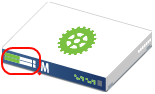
The states are:
Green: The node is healthy.
Yellow: The node cannot communicate with the other nodes within the five minute refresh.
Red: The node cannot communicate with the other nodes within two of the five minute refresh cycles.
Clear: The node is initializing or the state of the node is unknown.
Perform the following troubleshooting steps in the order listed if the state is anything but green:
-
Wait at least five minutes for the display to refresh and display the current state.
-
Click the node, then select Show health.
Show health displays which part of the appliance is having issues.
-
If Show health displays a problem, use the troubleshooting tools to gather logs.
For more information, see Section 8.2, Troubleshooting Tools.
-
Reboot the appliance, then wait at least another five minute cycle for all nodes to display the current state.
8.3.2 Top of the Node
The indicator is the top of the node.
Figure 8-2 Top of the Node
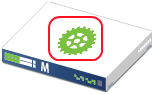
The states are:
Green: All Apply commands completed successfully.
Red: The Apply commands did not complete successfully.
Perform the following troubleshooting steps in the order listed if the state is red:
-
Mouse over the top of the node to see the status of the last Apply command made on the node.
-
If there is not enough information to help in the summary, click Enter troubleshooting mode on the node, then mouse over the node again.
The troubleshooting mode displays a details summary for the last Apply command made on the node.
-
Reboot the appliance, then wait at least another five minute cycle for all nodes to display the current state.
8.3.3 Identity Source
The indicator is the small identity source icon.
Figure 8-3 Small Identity Source
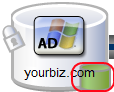
The states are:
Green: The connector to the identity source is healthy.
Yellow: The connector has communication problems with the identity source.
Red: The connector to the identity source is unhealthy or contains errors.
Clear: The state of the connector to the identity source is unknown.
Perform the following troubleshooting steps in the order listed:
-
If the connector is green, but users are not displayed in the SocialAccess interface, verify that the identity source servers are up and communicating.
-
Use the troubleshooting tools to gather logs, then look at the identity source provisioning logs listed in Table 8-1 for errors. The ConnectorLogs.txt file maps the display name of the connector with the log name of the connector, if there is more than one identity source connector.
-
Click Show health on the master node, then click Access Gateway.
If this item is yellow or red, the interface displays helpful information to help troubleshoot the issue.
-
If you are using LDAPS to communicate to Active Directory, refresh the certificates. You refresh the certificates as follows:
-
Log in to the Admin.html page, then click Configure on the Active Directory identity source.
-
Click the Refresh icon next to the Active Directory server.
-