6.6 Associating Custom Graphics with Classes and Elements
Use the Editing Channel to create custom graphics and drawings and associate them with specific classes and elements. You can also associate a node style or drawing template with an element or class.
A class association results in all elements created using the class inherit the associated graphic, drawing, node style, or template. It is possible to override the class association by selecting an element and changing the drawing, template, graphic, or node style associated with it.
6.6.1 Viewing a Drawing or Graphic
To view a drawing or graphic associated with a class or element:
-
Do one of the following:
-
In the pane, expand > parent elements (if necessary), then select an element.
-
In the pane, expand > > , then select a class.
-
-
In the Layout view toolbar, click the drop-down list (which by default, is selected to and displays as ), then select one of the following options:
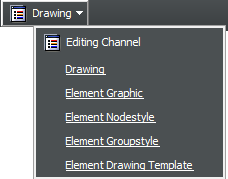
The Layout view updates. The Layout view is empty if there is no graphic or drawing associated with the element or class, or if a new drawing was created without any graphics. If there is no associated node style or template, the Layout view displays “none” in the middle of the screen.
When a different element is selected in the pane, the Editing Channel returns to the default channel.
6.6.2 Creating and Associating a Custom Drawing or Graphic
To create and associate a custom drawing or graphic with an element or class:
-
Do one of the following:
-
In the pane, select an element.
-
In the pane, expand > > , then select a class.
-
-
In the Layout view toolbar, click the drop-down list, then select or .
The Layout view updates.
-
Click .
-
Create the drawing or graphic.
-
Press Ctrl+S to save the drawing or graphic.
6.6.3 Associating a Node Style or Drawing Template
Associating node styles and templates with an element or class requires dragging and dropping the node style or template on to the Layout view.
To associate a node style or drawing template with an element or class:
-
Do one of the following:
-
In the pane, select an element.
-
In the pane, expand > > , then select a class.
-
-
In the Layout view toolbar, click the drop-down list, then select or .
The Layout view updates.
-
In the pane, click the plus (+) symbols to expand > , then expand either or .
HINT:Take care not to click these elements. You do not want to change the focus from the class or element selected in Step 1.
-
Drag and drop a node style or template into the Layout view.
The Layout view updates to display the selected node style or template.
-
To replace a node style or template in the Layout view, simply drag and drop a different node style or template into the Layout view.
The view updates.
-
To delete the existing node style or template, click .