5.7 Changing the Look and Feel
Themes are used to set the look and feel for a page. To set these options, click and select , then click the tab. The look and feel for pages within a community can also be set by the community administrator on the portlet. A child page inherits the look and feel of a parent page unless it is specifically changed.
The default Operations Center theme is simple, yet modern with lots of white space. Portlet icons become visible when the cursor is moved over the portlet’s title bar.
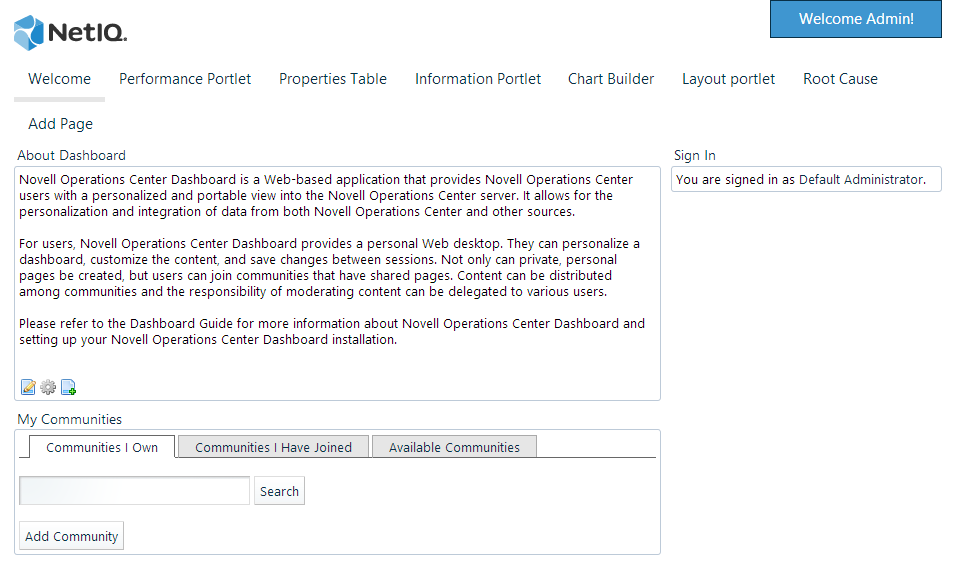
The Dashboard comes with a small library of themes and color schemes, including:
-
Operations Center: A very modern theme with a white background and text portlet headings. Each portlet is wrapped in a light grey border. This is the default dashboard theme
-
Classic: Uses a black header showing page portlets displayed in box containers.The Classic theme can be selected in blue, green or orange coloring.
-
Desktop: Simulates a desktop look and feel. The Welcome menu is replaced with a spherical icon in the top left corner of the page for the Liferay version, with portlets displaying as tabs across the top.The Desktop theme has both Liferay and Mac variations.
-
Novell: Uses a dark grey header and lighter grey tabs to display information in white portlet boxes on a light grey page.
-
Simple: A very clean looking theme with a white background, with light blue tabs and portlet title bars.
The following sections describe how to change the Dashboard theme as well as install additional themes:
5.7.1 Changing the Dashboard and Page Theme
To set the look and feel (such as theme and color scheme):
-
Click and select .
-
Do one of the following:
-
To apply the theme change to all pages, click the tab at the top of the page (next to the Pages tab).
-
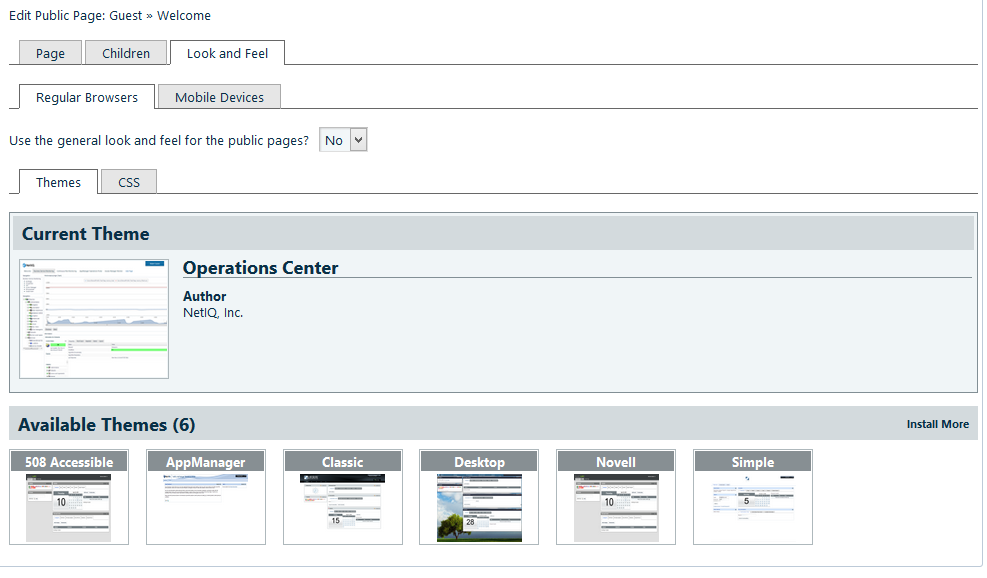
To apply the theme change for the current page, click the tab under the page’s bread crumb links (next to the Page & Children tabs) as shown below:
-
-
Select a theme and, if applicable, a color scheme.
5.7.2 Installing Additional Themes
New themes can be downloaded from the Liferay Marketplace at http://www.liferay.com/marketplace. Or, if you have a custom theme, you can upload and install it using a .war file.
To install new themes:
-
Click and select .
-
Click the tab.
-
Click . The opens with the tab open.
-
lick the tab, then browse for the new .war file to install.
-
Clickto install theme. A message displays that theme is downloaded successfully and installation is in progress.
-
Click to return to the > page.
-
Select the new theme when it displays under the tab.