2.4 Navigating Element Hierarchies
The pane consists of a hierarchy tree that enables drilling down to detailed levels of the objects in a managed organization. The selected root element is the top-level of the hierarchy. The first level beneath the root element consists of the major components defined for the root element. The second level consists of the children of the first level elements. Subsequent levels display the child elements of the previous level. For example:
Figure 2-9 Explorer Pane Hierarchy
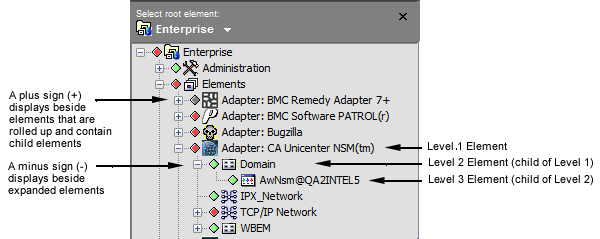
A  icon displays next to rolled‑up elements that have child elements.
Before displaying elements in the pane, some management systems must discover elements from the Object Request Broker (ORB), or another program that controls the communication between a client and an object on a server, such as the Simple Network Management Protocol (SNMP). In such a situation, discovering… displays next to an element to indicate the communication protocol is performing the discovery process. The word retrieving… displays next to elements being retrieved in the console. The communication protocol previously discovered these elements, and they reside on the server.
To expand or collapse an element level:
2.4.1 Expanding an Element Level
To expand an element level, do one of the following:
-
Double-click an element.
-
Click
next to the element.
A  displays next to expanded elements.
In the documentation, we use the verb “expand” instead of “double-click” or “click the icon” and we sequentially list the elements to be expanded, separated by the > character. For example:
In the pane, expand the root element > .
This means to click the for to expand its children, then click the for to expand its children. Or, you can double-click and to get the same effect.
2.4.2 Collapsing an Element Level
To collapse (roll‑up) an element level, do one of the following:
-
Double-click an element.
-
Click
next to the element.
A displays next to collapsed elements.
In the documentation, we use the verb “collapse” instead of “double-click” or “click the icon”.