3.2 Bookmarking Elements
The root element menu is available at the top of the Explorer pane and allows bookmarks to be created for more custom and easier navigation. It provides a way to access an element, perhaps a child element that is several levels beneath the root, using a single click. Create bookmarks for frequently accessed elements.
3.2.1 Understanding Bookmarking in Operations Center
Figure 3-3 shows the bookmark displayed in the list of root elements:
Figure 3-3 Root Element Drop-Down List
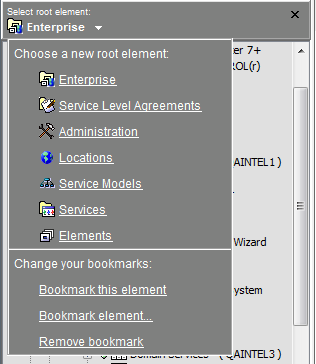
Table 3-1 summarizes the menu options.
Table 3-1 Bookmark Options
|
Option |
Function |
|---|---|
|
|
Adds the current element currently to the root element selection list. |
|
|
Opens a dialog box displaying all root element hierarchies to select an element to bookmark. |
|
|
Deletes the bookmark that is currently selected as the root element. |
3.2.2 Bookmarking the Current Element
To bookmark the current element:
-
Select the desired element in the Explorer pane.
-
Click the root element drop-down list, then select .
A link to the element displays in the root element drop-down list.
3.2.3 Bookmarking an Element from a List
To bookmark any element:
-
Click the root element drop-down list, then select .
A drop-down list displays the hierarchy for each root element.
-
Select an element at any level, then click to add it to the root element selection list.
3.2.4 Accessing a Bookmark
To access a bookmark:
-
Click the root element drop-down list and then select the bookmark.
3.2.5 Removing a Bookmark
To delete a bookmark:
-
Click the root element drop-down list and then select .