3.1 Importing Management Information Bases (MIBs)
A Management Information Base (MIB) is a type of information warehouse. It is a collection of metadata definitions, which define the properties of the managed object within the device to be managed. Every managed device keeps a database of values for each of the definitions written in the MIB. It is not the actual database itself—it is the metadata about the information contained within the agent. Definition of the MIB conforms to the SMI given in RFC 1155. The latest Internet MIB given in RFC 1213 is sometimes called the MIB‑II.
3.1.1 Viewing a List of MIB Modules
Operations Center supports both SMI version 1 and version 2, and ships with approximately 100 MIB databases, mostly comprised of those standardized MIBs defined by the IETF. When the SNMP adapter starts up, it automatically extracts the MIBs. View the list of databases on the adapter element’s MIB Database property page, as shown above.
If it is necessary to import additional MIBs for your SNMP Agents, see Section 3.1.3, Importing a MIB Databasethe following section. Supported and imported MIBs are automatically added to the Model Repository and are available for selection when setting up hosts/devices.
Figure 3-1 shows a list of MIB modules used by the SNMP adapter MIB Database property page:
Figure 3-1 SNMP Adapter Properties
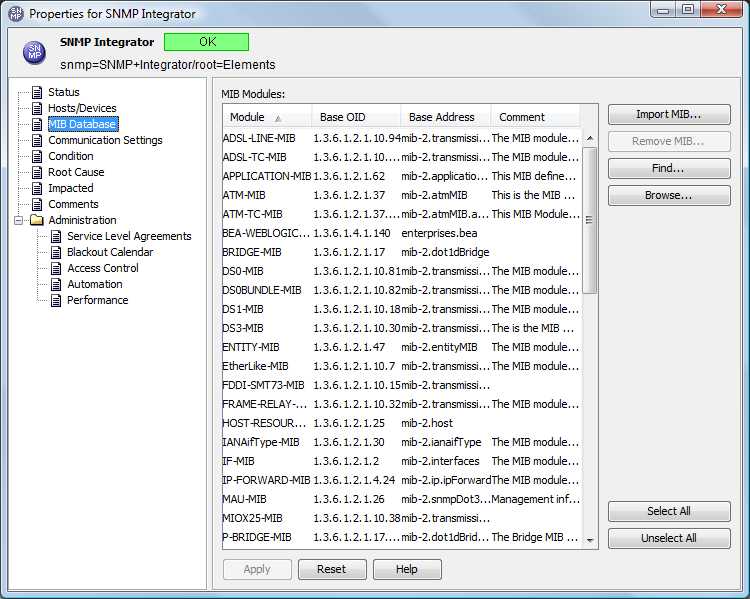
To access this view, right-click the top-level adapter element in the hierarchy, then select .
3.1.2 Understanding the MIB Database
The SNMP adapter allows you to import and use any MIB database that you have available. MIB databases can be obtained from the Internet or from device software that you might have.dsads
A free SNMP MIB search engine for SNMP MIBs is available at mibDepot. Use this search engine to build a comprehensive dictionary of detectable attributes. For example, Figure 3-2 displays the list of matching objects you get when you run a search for information on compression under Microsoft.
Figure 3-2 OID lookup table from http://www.mibdepot.com-
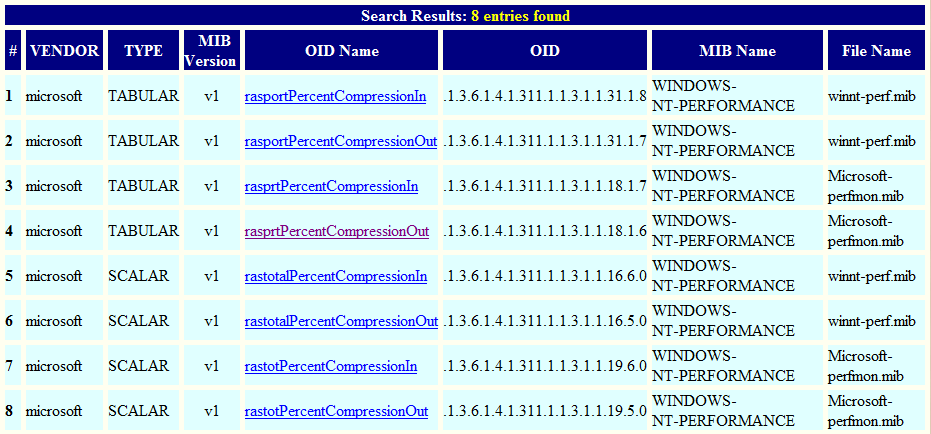
Then, clicking the link, rasprtPercentCompressionOut, the following screen displays details about the syntax and access:
Figure 3-3 Details about the rasprtPercentCompressio--nOut OID
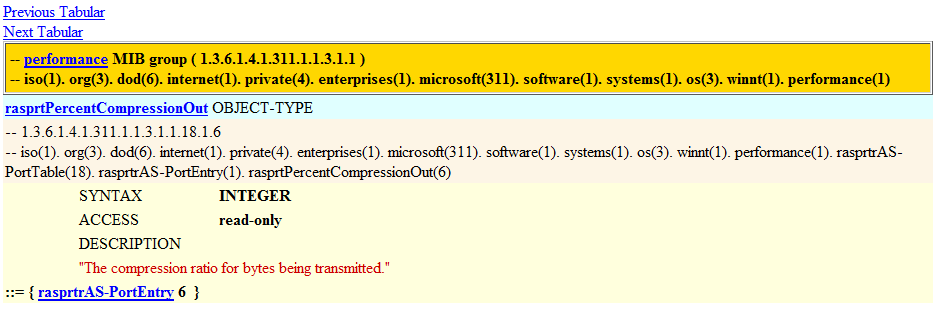
You can use this information to build a dictionary of detectable attributes at a very detailed level.
The following is a sample MIB based on rasprtPercentCompressionOut:
iso.org.dod.internet.private.enterprises.microsoft.software.systems.os.w
innt.performance.rasprtrAS-PortTable.rasprtrAS-PortEntry.rasprtPercentCo
mpressionOut: 1.3.6.1.4.1.311.1.1.3.1.1.18.1.6
3.1.3 Importing a MIB Database
To import a MIB Database
-
In the pane, expand the root element > .
-
Right-click the SNMP adapter, then select to open the Properties dialog box.
-
In the left pane, click to open the MIB Database property page.
-
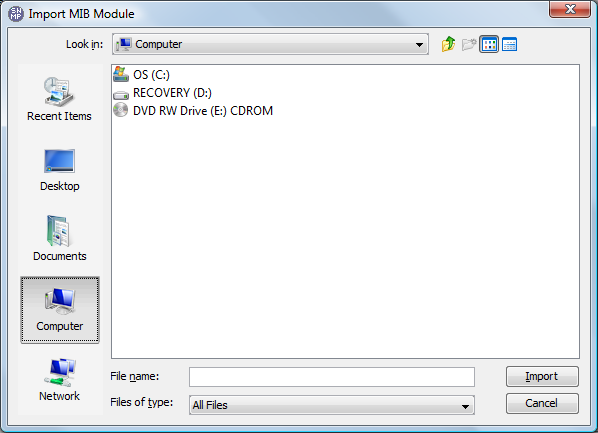
Click to open the Import MIB Module dialog box.
-
Click the drop-down list and select a MIB database file.
The following dialog box is displayed:
-
Click to add the MIB into the database.
3.1.4 Browsing for a MIB
To find a MIB by browsing:
-
In the pane, expand the root element > .
-
Right-click the SNMP adapter, then select to open the Properties dialog box.
-
In the left pane, click to open the MIB Database property page.
-
Click .
The Choose MIB Branch dialog box opens to allow you to browse the MIB Database tree:
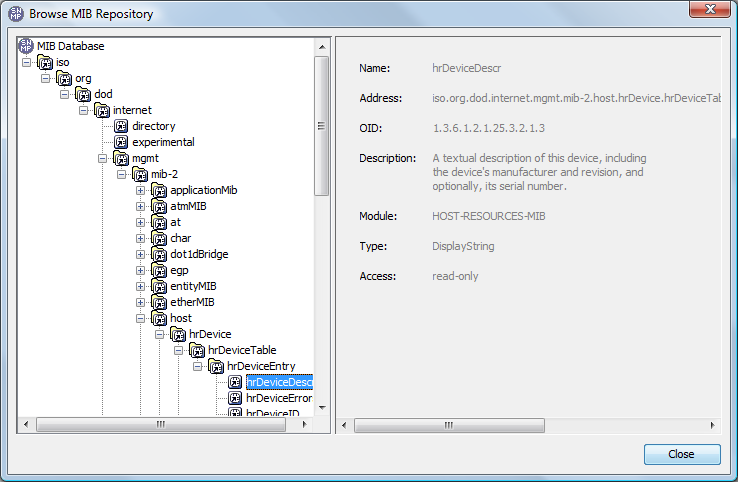
-
Select an item and view properties in the right display pane.
3.1.5 Finding a MIB
To search for a MIB:
-
In the pane, expand the root element > .
-
Right-click the SNMP adapter, then select to open the MIB Database property page.
-
In the left pane, click to open the MIB Database property page.
-
Click to display the dialog box.
-
Do one of the following:
-
Enter a keyword matching the host name.
-
Use a Perl 5 regular expression to search for MIBs. The following example matches all hosts with Novell.com:
.*Novell.com
Click to start the search. A dialog box confirms the number of matching MIBs and highlights them in the MIB Database property page.
-
3.1.6 Removing a MIB from the Database
To remove a MIB from the database:
-
In the pane, expand the root element > .
-
Right-click the SNMP adapter, then select to open the Status property page.
-
In the left pane, click to open the MIB Database property page.
-
Select a module and click .