12.3 Use Case: Creating a Configuration Management Database
How do you handle configuration management when there are multiple data sources?
SCM is ideal for creating a Service Catalog that consolidates and organizes data. It is ideal because it doesn’t require physically building a new CMDB360° to store all the newly organized and filtered data.
Use SCM to create a CMDB360° to unify data and knowledge from various views and databases. Only information about new relationships that are inferred is persisted in Operations Center.
12.3.1 Scenario Description: Creating a View from Multiple Data Sources
In this example, the goal is to create a view that combines data from multiple data sources.
Use SCM to create multiple configuration definitions that are merged together to accomplish the goal. The first configuration leverages a CRM database that enables creating a hierarchy that shows the services that support customers. Leverage this configuration to correlate with technology by normalizing, reconstituting and correlating the various technology elements. The end result is the CMDB360°.
Because you are working with an existing element hierarchy unique to your environment, you should read through this example, then apply the steps to the relevant elements in your system.
This scenario uses:
-
A custom Data Integrator adapter that mines a CRM database and provides information about what services support various customers
In this example, is the element hierarchy created by the Business Data Integrator adapter that queries a CRM database and organizes data by service name.
-
A second custom Data Integrator adapter that pulls in database information about IT services and the technology that supports them
-
A correlated hierarchy created by a service configuration (Layer 1 of this scenario) and reused for the subsequent configuration (Layer 2 of this scenario)
12.3.2 LAYER 1: Set Up an Initial Structure to be Leveraged for the CMDB
-
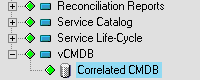
Under , add an element named .
This is the parent of the new tree.
-
Add an element named as a child of :
-
Right-click the element, then select > .
-
When prompted to add a new definition, click to open the Service Configuration Editor.
-
Specify the definition name .
-
Click the link in the right pane.
-
To define the Structures for the element by identifying an existing hierarchy that drives the shape of the new tree, click the icon, then select the element as a , as shown in the following illustration:
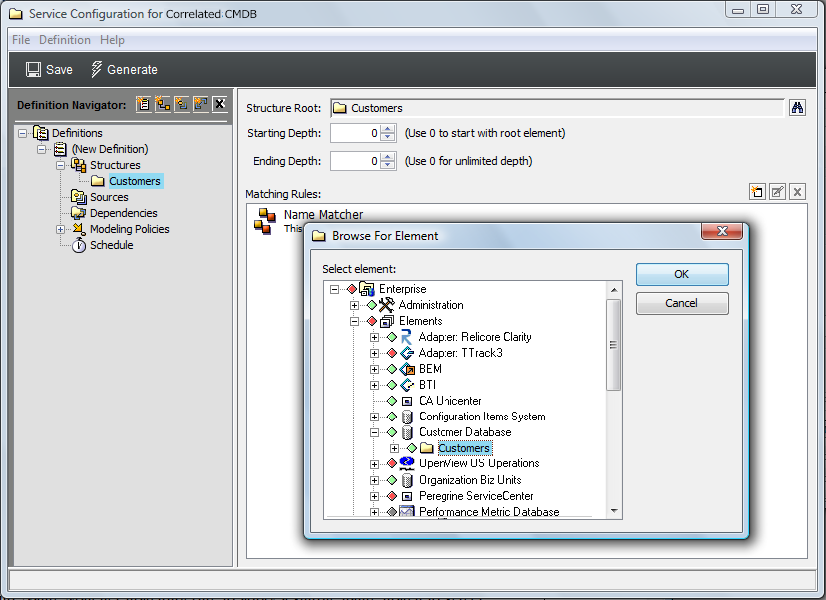
Assume that is a hierarchy that is created by a Data Integrator adapter that queries a CRM database and organizes data by service name.
-
To see all elements contained in the hierarchy, leave and at 0.
-
Use the default Name Matcher matching rule to apply a simple name match to select elements.
-
To create a hierarchy that can be leveraged with future layers or generations of configurations, without having state information that might confuse the view, do not create any Source definitions.
-
To define and policy rules to further define how the configuration is generated and elements are correlated, in the left pane, expand , then click or .
The right pane updates.
In this example, the configuration is generated using the and defaults.
Structure is determined solely by the hierarchy as leveraged by the Structures definition defined earlier.
-
Click Save on the toolbar to save configuration settings.
-
Click Generate to generate the new tree.
The plan is to use this configuration with another configuration defined for the same element. Generating this configuration makes the hierarchy available for reuse.
12.3.3 LAYER 2 – Define a Second Definition That Provides State Information and Generate the CMDB360° View
-
In the Service Configuration Editor, click
 () to create another configuration definition.
The new definition element is added beneath the existing definition () in the tree.
-
Enter the new definition name: .
-
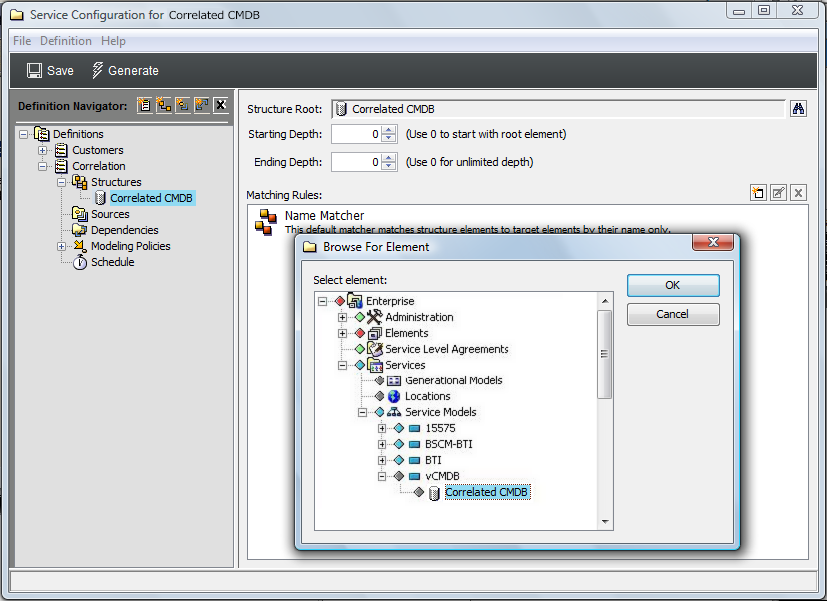
Click the Create Structure link to select an existing hierarchy to drive the shape of the new tree.
-
Click , then select > > > :
-
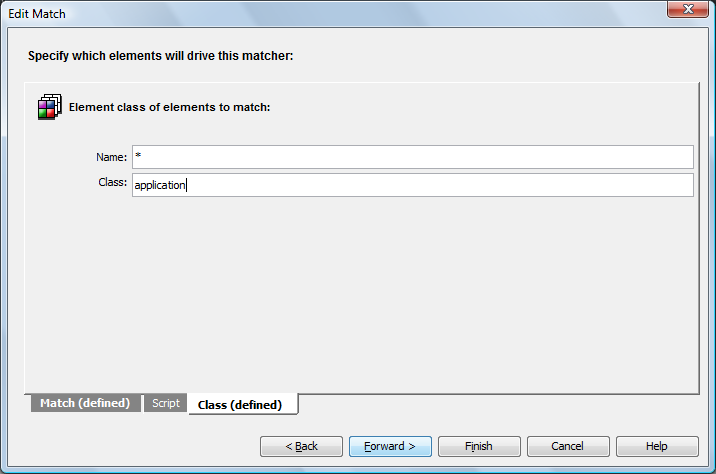
To match only those elements that are in the application class, define a Matching Rule to match by class as shown in the following illustration:
-
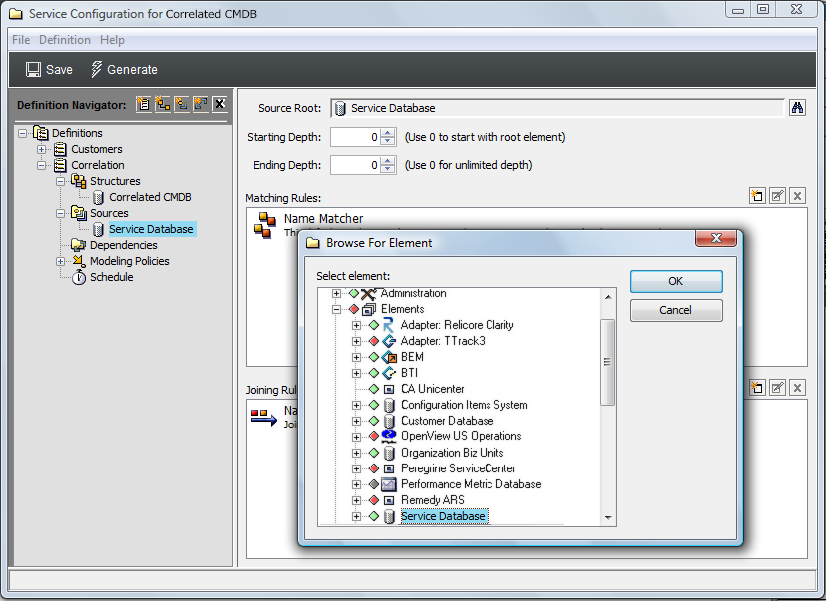
To define the Sources for the configuration by identifying an existing hierarchy that provides state and property information to the new elements in the configuration, create a Source definition that uses , which is an element originating from the Data Integrator adapter:
-
Use the default join rule to link state information to structure elements using a simple name match.
This definition links state and property information found in the to elements in the structure.
-
To define the and policy rules to specify how the configuration is generated and elements are correlated:
-
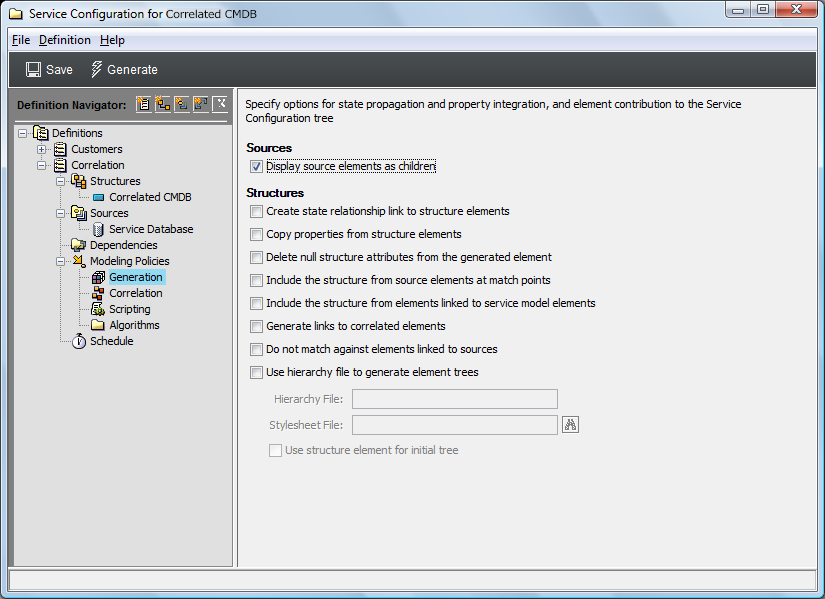
To display all children found beneath match points in the hierarchy, select the check box in policies:
-
To generate the hierarchy and match elements as specified in the , , and definitions, retain the default selection in policies:

-
-
Click on the toolbar to save configuration settings.
-
Click to generate the new tree.
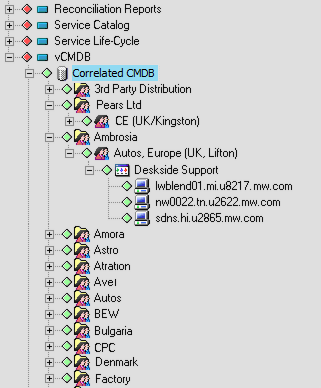
The new hierarchy is built under the element. It is the result of two service configuration definitions: and . uses as its structure the hierarchy created by a Data Integrator adapter that queries a CRM database and organizes data by service name. uses as its source the element hierarchy, which also originates from a different Database Integrator adapter. provides state and property information to the elements in the new configuration.
-
After the configuration is run and results are verified, create a schedule for the generation of the service configuration on a routine basis.