A.5 Step 4. Define Service Level Agreements and Objectives
Use the top level element property pages to start defining the Service Level Agreement and standard objectives.
A.5.1 Defining the Service Level Agreement
-
In the pane, expand > > .
-
Right-click , then select to open the Status property page.
-
In the left pane, expand .
-
Click to open its property page.
-
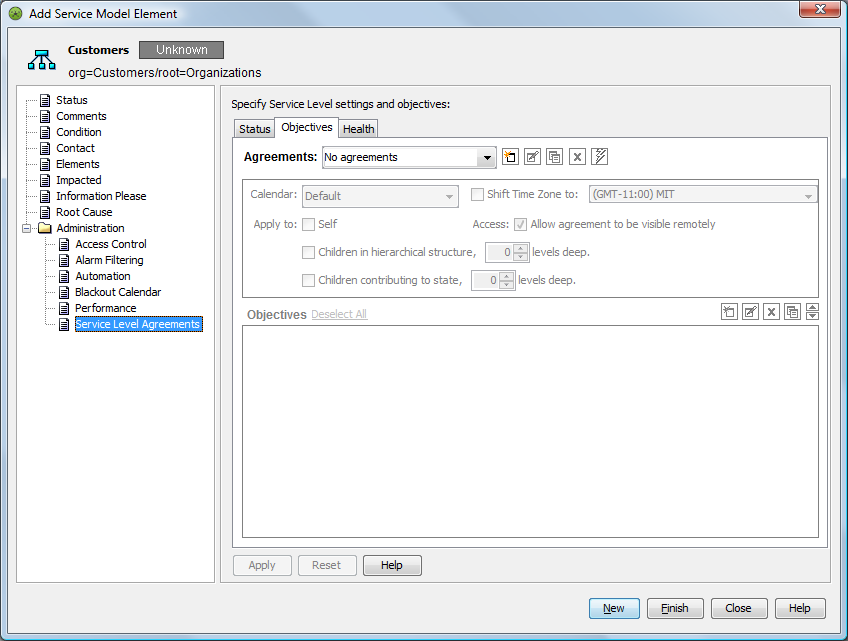
In the Service Level Agreements property page, click the tab.
-
On the toolbar, click
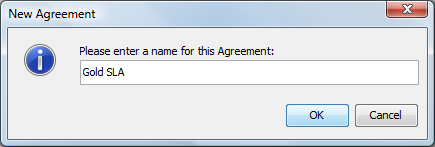
 to open its dialog box:
-
Enter Gold SLA in the field to name the Service Level Agreement.
-
Click to create the agreement.
A.5.2 Creating an Objective
-
On the toolbar, click
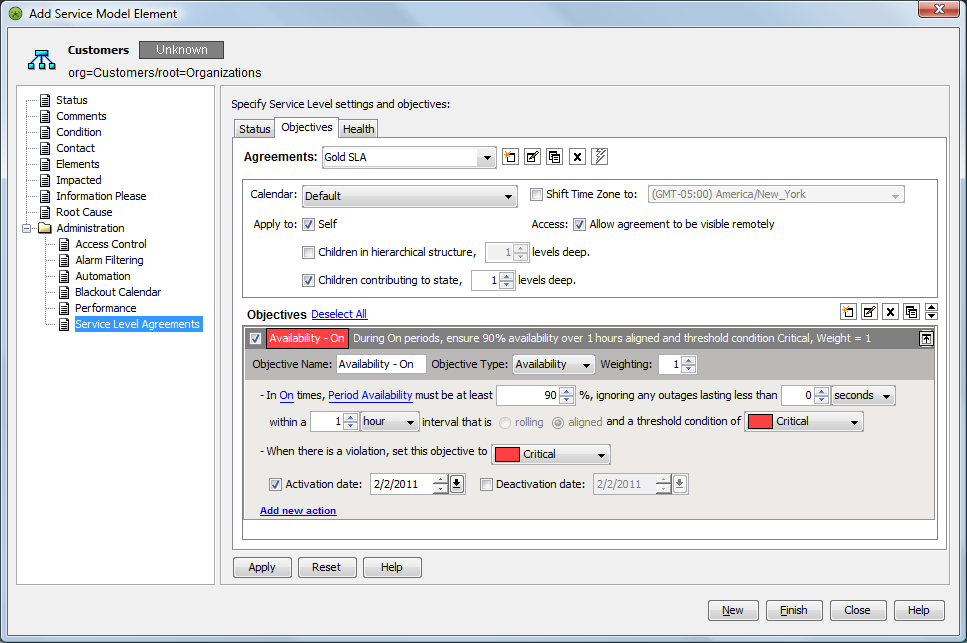
to display the default objective values in the pane:
-
Create a new calendar for a service to define operational windows of time.
-
Set different objectives for each time category, such as operational and nonoperational hours.
The Calendar setting is Default. The default calendar is set to ON, 24 hours, 7 days a week. The objectives for this SLA are applied 24 hours, 7 days a week, provided the ON time category is used in the objective definition.
-
In the section, select the check box.
-
Select the check box.
-
Select 4 for the number of levels deep.
All child elements four levels down from Customers inherit the SLAs and objectives.
-
Select the check box.
-
Select 4 for the number of levels deep.
-
Click to save the objective.
-
Verify that the child element, , inherited the objective just created.
A.5.3 Verifying the Results
-
In the pane, expand > > .
-
Right-click , then select to open the Status property page.
-
In the left pane, expand .
-
Click to open its property page.
-
In the Service Level Agreements property page, click the tab.
The Gold SLA displays as inherited.
Also, the objective displayed is the same one added to the element.
A.5.4 Overriding Agreements
It is possible to override an agreement and its objectives. For example, the objectives for a specific branch of a hierarchy might require more specific objectives that do not apply elsewhere.
The following is an example of how to override the agreement settings that were made with the steps above.
To override the agreement:
-
In the pane, expand > > > > > .
-
Right-click processed invoices, then select to open the Status property page.
-
In the left pane, expand .
-
Click to open its property page.
-
In the Service Level Agreements property page, click the tab.
-
Click
 to create a new SLA override.
-
Click
to specify an objective for the agreement override.
-
Enter Number of Approved Invoices in the field.
-
In the drop-down list, select .
-
In the drop-down list, select .
-
Enter Metric Value in the property field, then select from the drop-down list.
-
Enter 950 in the value field, then select 2 in the occurrences selector.
-
Click to save the SLA override and its new objective.