14.5 Monitoring and Managing Automation Events for an Element
Monitor the automation events associated with an element using the Properties dialog box.
14.5.1 Monitoring Automation Events for an Element
To monitor an element’s automation events:
-
In the pane, right-click an element, then select to open the property page.
-
In the left pane, click to open its property page.
If multiple automation definitions are defined for the element, click the drop-down list, then select the automation.
14.5.2 Modifying Automations for Elements
A filter is assigned an automation definition that specifies the automated action taken when the filter triggers the action.
Modifying an Automation Definition
To update an automation:
-
In the pane, navigate to the element with the automation definition.
-
Right-click the element, then select to open the property page.
-
In the left pane, click to open its property page.
-
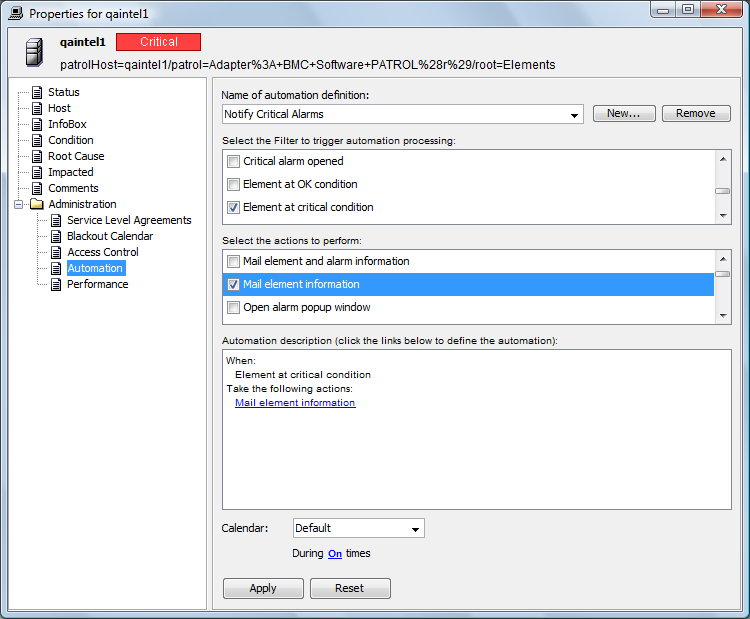
Click the drop-down list to select the automation definition.
Automation settings display:
-
Make the necessary edits.
-
Click to save changes.
Selecting a Specific Condition Level that Triggers the Automation Event
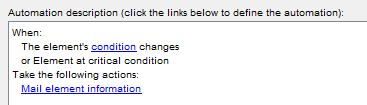
If is a filter, no condition level is defined by default, so the filter is triggered with any condition change.
To specify a condition level to trigger an automation event:
-
In the section, click the condition link to open the Define Automation dialog box for setting the condition:
-
Click the drop-down list, then select a condition:
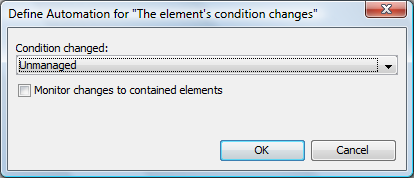
Select the element condition that determines when the filter is used.
For example, selecting triggers the action only when the element condition changes to Unmanaged.
-
Click to close the Define Automation dialog box.