14.3 Monitoring and Managing Automation Events
After automation events have been defined and applied to a server, user, or group, you can monitor the status of each event, and manage the automation information:
14.3.1 Monitoring Your Client-Side Automation Events
An Automation Events list allows you to view or monitor any client-side automation events created for your user account or any groups you are a member of.
To monitor automation events:
-
In the pane, expand .
-
Right-click the element, then select .
-
In the left pane, click to open the property page:
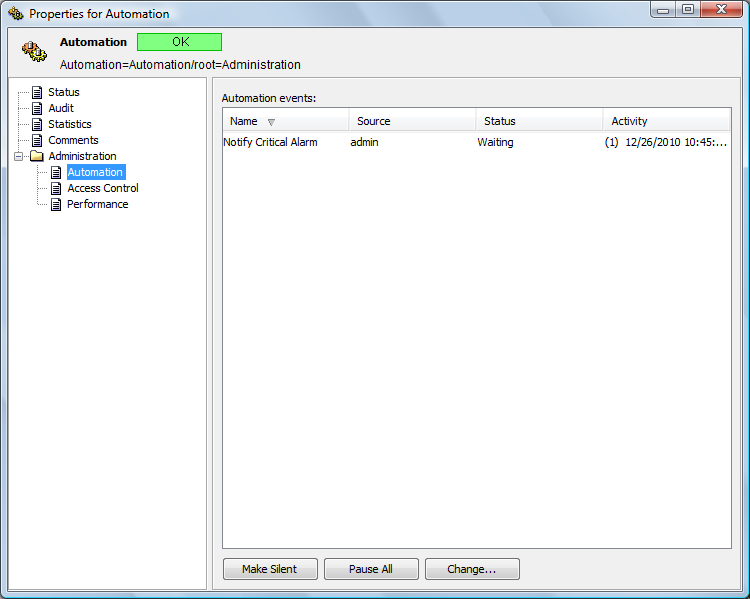
The section lists all of the automation events.
-
Review the information for the automation events in the four columns:
Name: Name defined for the automation event.
Source: User, group, or server for which the event is configured.
Status: The status normally is Waiting for the next event to occur. If the automation has been paused, the status is Paused.
Activity: Date and time and element DName of the most recent automation event.
-
Do one of the following:
-
To silence the alarms for a selected automation, select the automation, then click . The alarm is silenced and the button changes to Make Audible.
-
To halt all automation events, click to change it to Unpause All.
-
To pause a specific automation, select the automation, then click to open the Automation Event Administration dialog box.
-
-
To pause activity for the event, do the following:
-
Select the event and click . The Automation Event Administration dialog box displays.
-
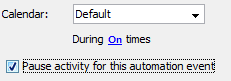
Select the check box.
-
Click , then close the dialog box.
-
-
Click to save the changes.
If activity is paused for an event, the event remains paused until you deselect the check box, then click .
14.3.2 Viewing Statistics about Server Side Automation Tasks
The tab for the element enables administrators to monitor server-side automations (script-based and nonscript-based), and if necessary, empty the queue or cancel problematic tasks.
To view statistics about server-side automation tasks:
-
In the pane, right-click the root element, select to open the property page.
-
In the left pane, click to open its property page:
-
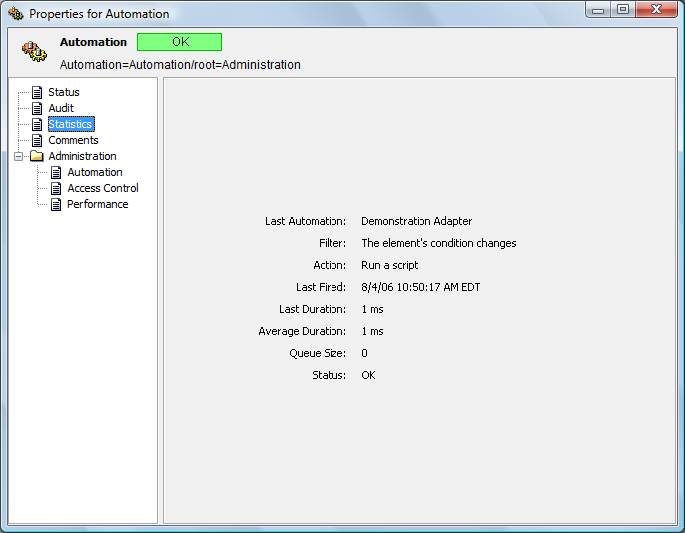
Review the following statistics:
Last Automation: Name of the server-side automation that fired most recently.
Filter: The filter condition that caused the most recent automation to fire.
Action: The action performed by the most recent automation.
Last Fired: The date when the most recent server-side automation was fired.
Last Duration: The amount of time, in milliseconds, that the most recent server-side automation task was completed successfully.
Average Duration: The average amount of time, in milliseconds, that represents the duration of all server-side automation tasks since the Operations Center software was started.
Queue Size: The current number of entries in the server-side automation queue, excluding the automation that is currently executing (if any).
Status: The status of the automation that fired most recently. Values include:
-
OK: The automation ran successfully.
-
Exception: The automation ran but had exceptions.
-
Cancelled: The automation was cancelled by the user.
-
Not Dispatched: No automations dispatched at startup.
-
14.3.3 Viewing the Server-Side Automations Queue
Server-side automation tasks waiting to be executed are stored in a queue.
To view the automation tasks currently in the queue:
-
In the pane, right-click the > element, then select .
The Automation Queue dialog box displays a list of automation tasks waiting to execute.
-
Click to close the dialog box.
14.3.4 Clearing the Server-Side Automations Queue
Server-side automation tasks waiting to be executed are stored in a queue, which can be cleared.
To cancel all automation tasks in the queue:
-
In the pane, expand .
-
Right-click and then select .
All automation tasks waiting to execute are deleted.
14.3.5 Canceling the Current Server-Side Automation Task
The option can cancel the current server-side automation task.
To cancel an automation task:
-
Right-click the element in the pane and select to stop the automation task
14.3.6 Editing Automation Events
To make changes to automation events:
-
In the pane, expand .
-
Right-click , then select to open the property page.
-
In the left pane, click .
The property page opens and contains a list of all automations.
-
Select the automation definition to edit.
-
Click to open the Automation Event Administration dialog box.
-
Make the necessary edits.
-
Click .
The changes are saved for the automation event.