5.2 XPOZ GUI
The XPOZ GUI is a graphical utility that executes the XPOZ scripts. With it you can change variables during script execution and view their results, press buttons to manipulate execution, and have symbol table access.
To run the XPOZ GUI utility from the default location, use the following command:
-
Windows: c:\Program Files\Novell\XPOZGui.exe
-
Linux: /usr/novell/XPOZGui
Figure 5-1 XPOZ GUI
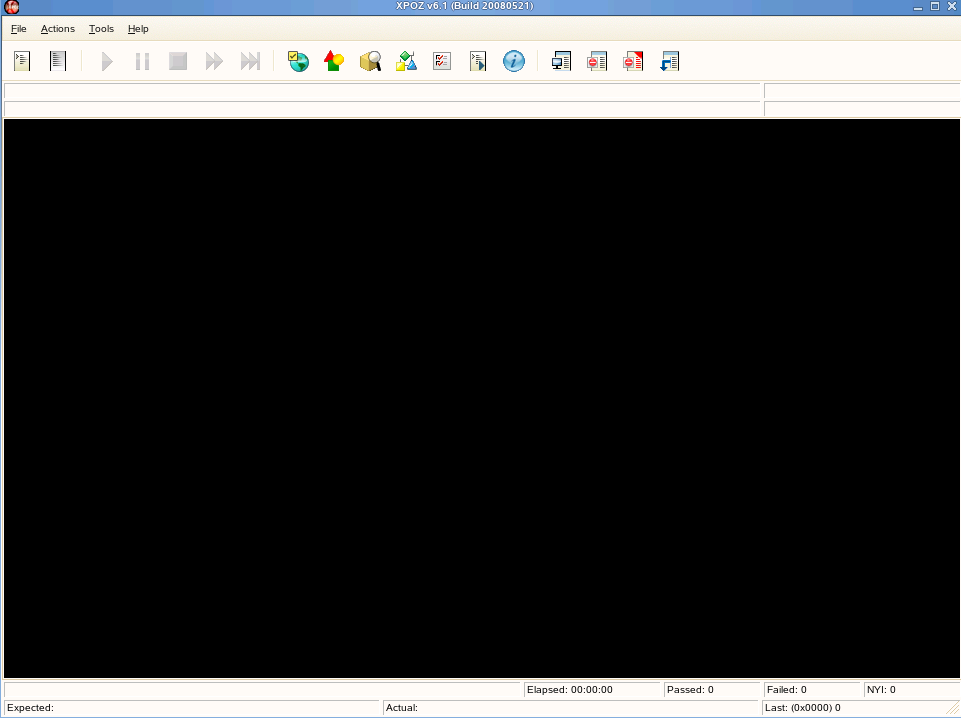
Table 5-1 describes the different features of the XPOZ GUI tool. The browsers allow you to view specific information to see why a script failed.
Table 5-1 XPOZ GUI Features
|
Feature |
Description |
|---|---|
|
|
Browse to and select the XPOZ script file to execute. |
|
|
The feature is not implemented. |
|
Play |
Executes the XPOZ script. |
|
Pause |
Pauses or resumes the XPOZ script file execution. |
|
Stop |
Stops the execution of the XPOZ script file. |
|
FFWD Retry |
If errors occur during the execution of the XPOZ script, it skips the current delay before recalling the function. |
|
FFWD Retry Count |
Makes one more retry of the script before continuing with the execution. |
|
|
Browse to and modify an environment variable. |
|
|
Browse to and modify a symbol defined in the symbol table. |
|
|
Browse to a specific eDirectory™ object. The lists each eDirectory tree you are authenticated to. |
|
|
Browse to the eDirectory schema. The lists each eDirectory tree you are authenticated to. |
|
|
Modify common environment variables, such as log to screen or retrydelay. |
|
|
Inserts additional script commands into the XPOZ script that is running. |
|
|
Lists the information about the script being executed. |
|
|
Allows you to access and reuse the results of the XPOZ script. |
|
|
Turns off the results. The results are no longer recorded. |
|
|
Turns on the results. The results are recorded. |
|
|
The feature is not implemented. |
|
|
The feature is not implemented. |
|
|
Allows you to select the type of results tracking system. Currently the only supported system is Results Tracking System v1 (RTS). |
 Open Script File
 Open Log File
 Environment Browser
 Symbol Table Browser
 Object Browser
 Schema Browser
 Options Browser
 Execute Script Command
 Script Information Dialog
 Results Admin
 Turn Results Off
 Turn Results On
 Turn Defect Tracking Off
 Turn Defect Tracking On
 Select Results System