12.2 About the Resource Editor
12.2.1 Using the Resource Editor
Creating Resources
-
Open the Create Resource Wizard in one of these ways:
-
From the Provisioning view, open , right-click , then select .
-
Select .
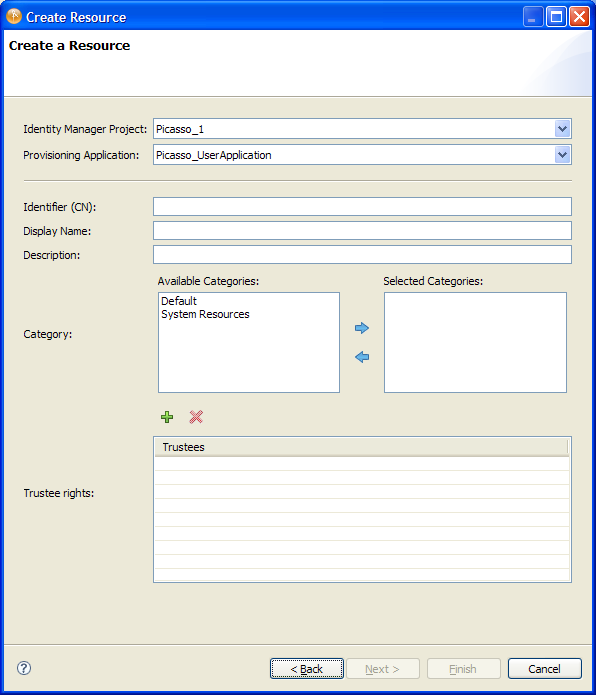
The Create Resource wizard displays:
-
-
Fill in the fields as follows (*indicates a required field).
Field
Description
*
The name of the Designer project and the provisioning application where you want to create the resources.
NOTE:These two fields display when you launch the wizard from the menu.
*
The unique identifier for the resource.
*
The text displayed as the field in the User Application. You can translate this text into any of the languages supported by the User Application. For more information, see Section 2.10, Localizing Provisioning Objects
The text displayed as the in the User Application. You can translate this text into any of the languages supported by the User Application. For more information, see Section 2.10, Localizing Provisioning Objects.
*
Allows you to categorize resources. Used for filtering resource lists in the User Application. The category names are defined in the directory abstraction layer Resource Category list.
Specifies the users, groups, or containers that can read, compare, and browse the resources. (Read, compare, and browse are the default privileges.)
-
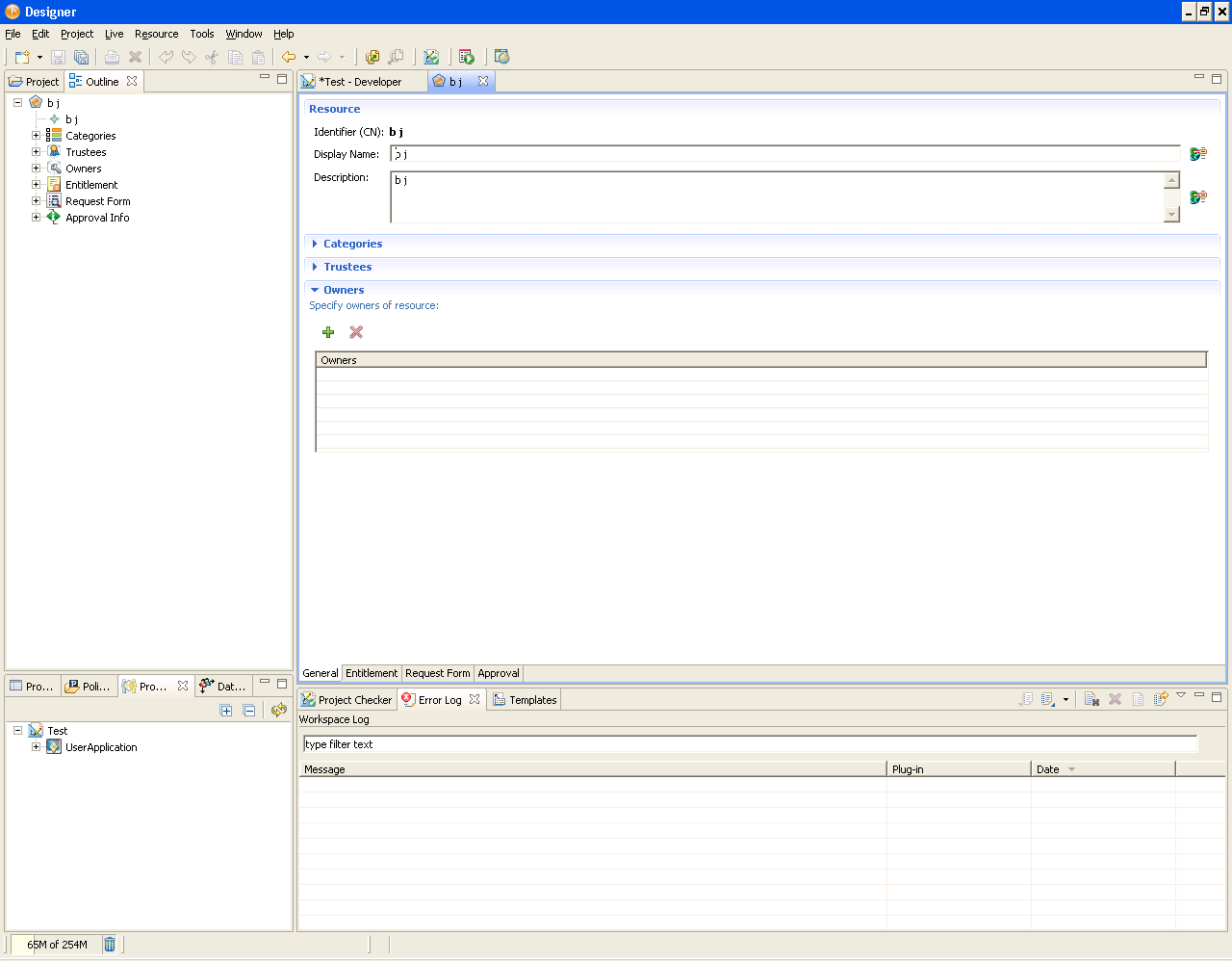
Click . Designer creates the resource locally and opens the Resource editor.
Use the tab to modify the values you entered in the wizard, and to specify a Resource Owner. For more information on the properties, see Table 12-2.
Specifying Entitlements
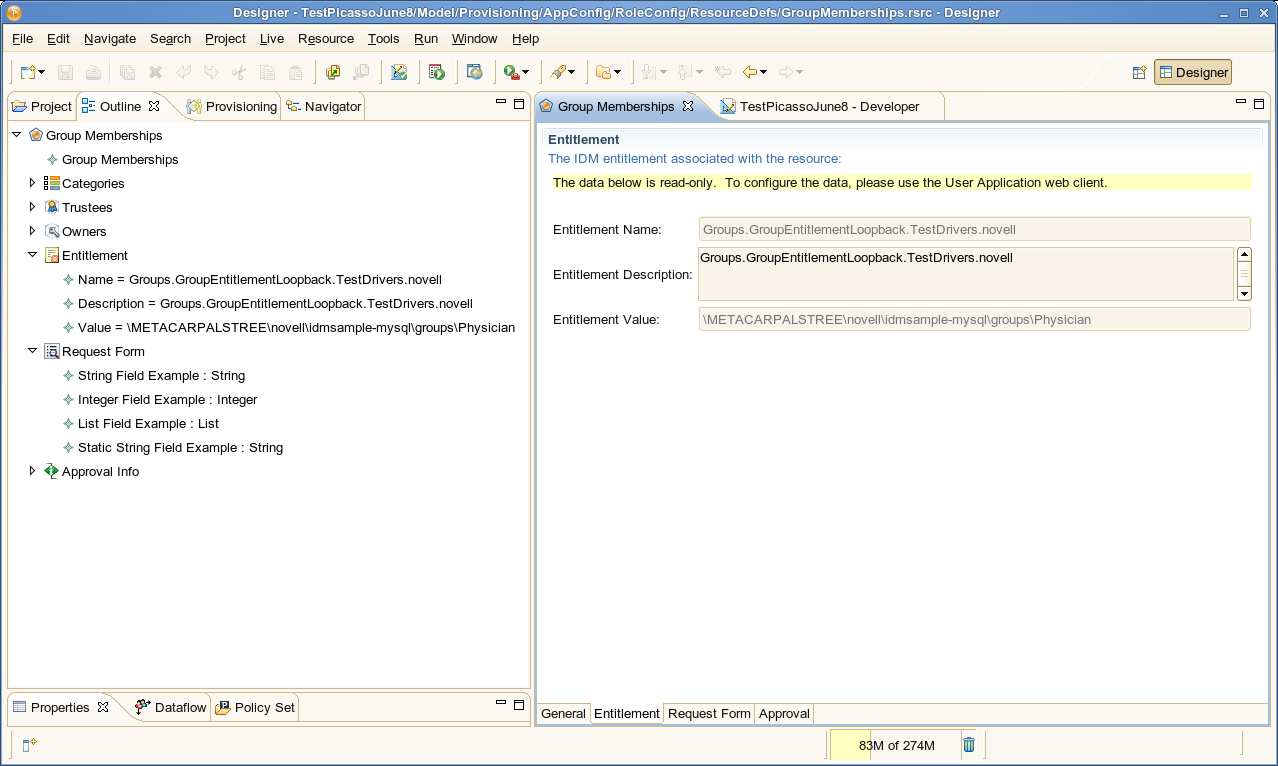
Navigate to the tab. The Entitlement page is in read-only mode. It shows entitlements associated with a resource.
Specifying Request Form
Navigate to the Request Form tab. Request Form page is in read-only mode. The information is displayed in the Request Form fields when a Resource is requested.
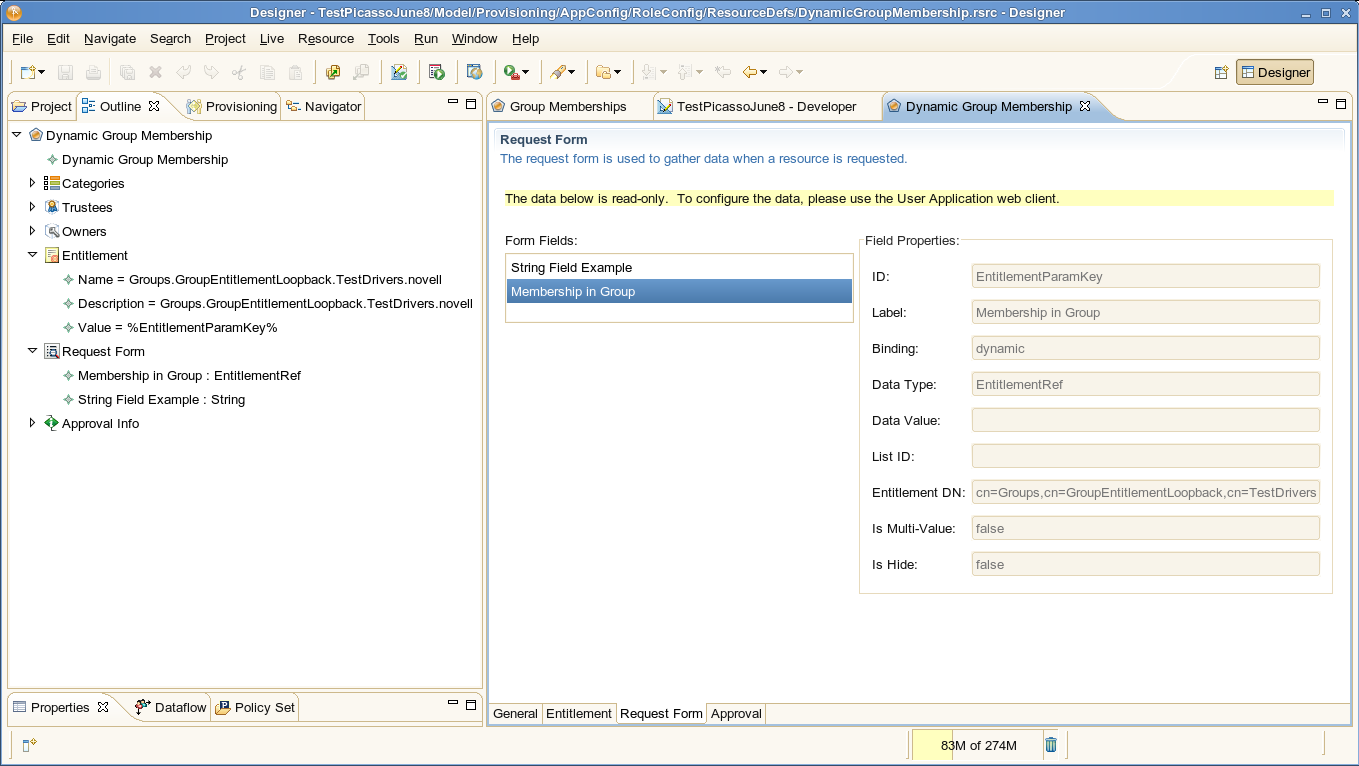
Table 12-1 Form Field Properties
Specifying Approvals
-
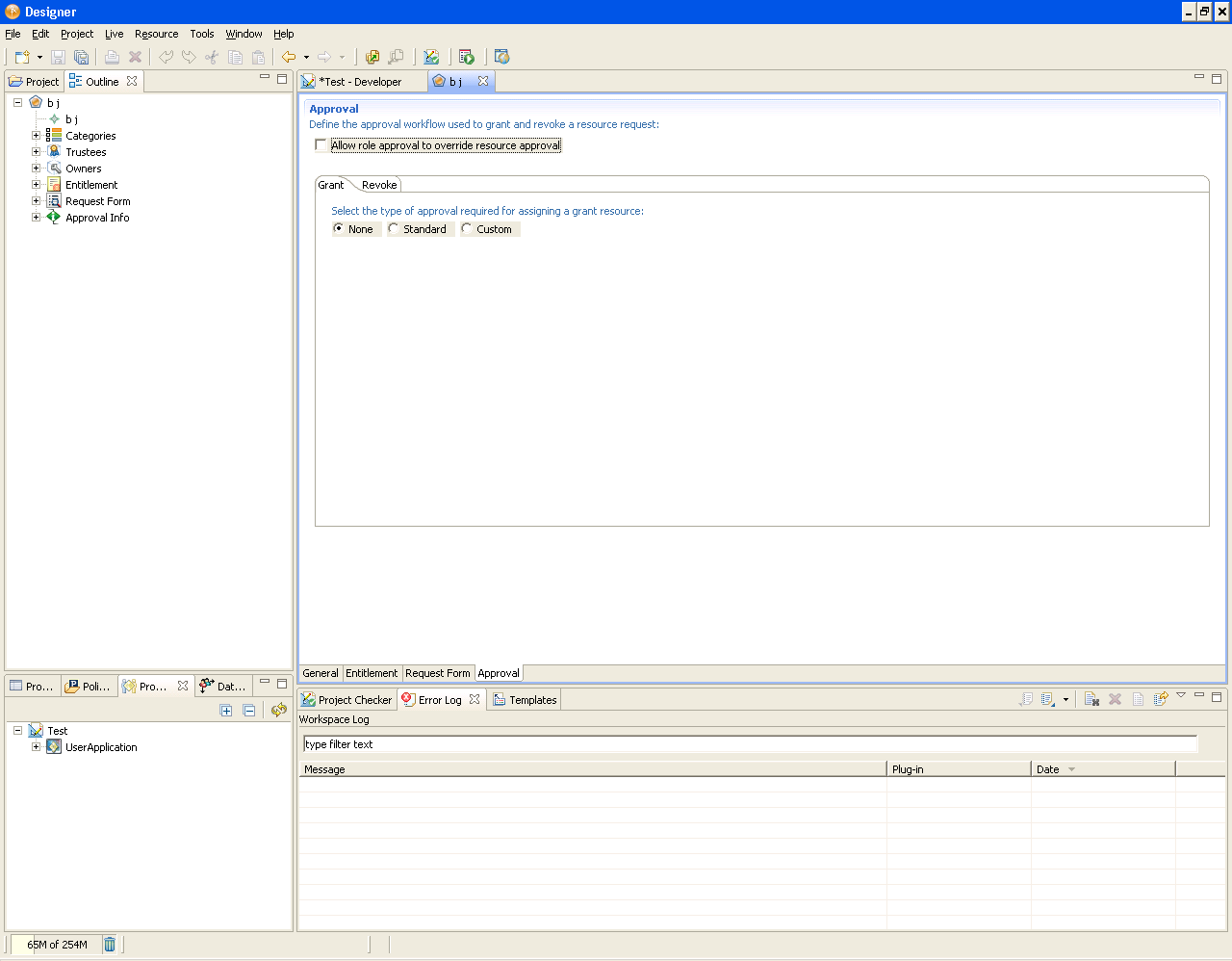
Navigate to the Approvals tab.
-
Select when you want the requesting system (such as role provisioning) to override approvals of the resource provisioning.
-
Click the or tab, then select the type of grant or revoke for the resource.
-
: Select this option when no approval is required for a resource grant or revoke request. Continue with Step 5.
-
: Select this option if the resource requires approval for a grant or revoke request, and you want the approval to execute the standard provisioning request definition that ships with the Roles Based Provisioning Module. Continue with Step 4.
-
: Select this option when you want to specify a custom provisioning request definition for granting or revoking resources. You are prompted to select a provisioning request definition from the dropdown list. The list is populated with approvals whose Process Type is Resource. Continue with Step 5.
-
-
For Standard Approval types fill in the fields as follows:
-
Save the Resource definition.
12.2.2 Resource Property Reference
Table 12-2 Resource Overview Properties
|
Property |
Description |
|---|---|
|
Identifier (CN) |
The unique identifier for the resource. |
|
Display Name |
The text displayed as the field in the User Application. You can translate this text into any of the languages supported by the User Application. For more information, see Section 2.10, Localizing Provisioning Objects |
|
Description |
The text displayed as the in the User Application. You can translate this text into any of the languages supported by the User Application. For more information, see Section 2.10, Localizing Provisioning Objects. |
|
Categories |
Allows you to categorize resources. Used for filtering resource lists in the User Application. The category names are defined in the directory abstraction layer Resource Category list. |
|
Trustees |
Specifies the users, groups, or containers that can read, compare, and browse the resources. (Read, compare, and browse are the default privileges.) |
|
Owners |
A user who is designated as the owner of the resource definition. The resource owner does not automatically have the authorization to administer changes to a resource definition. |