4.3 Creating the Driver in iManager
You create the SAP HR driver by importing the driver’s basic configuration file and then modifying the configuration to suit your environment. After you’ve created and configured the driver, you need to start it.
4.3.1 Importing the Driver Configuration File
-
In iManager, click
 to display the Identity Manager Administration page.
-
In the Administration list, click to launch the Import Configuration wizard.
-
Follow the wizard prompts, filling in the requested information (described below) until you reach the Summary page.
Prompt
Description
Where do you want to place the new driver?
You can add the driver to an existing driver set, or you can create a new driver set and add the driver to the new set. If you choose to create a new driver set, you are prompted to specify the name, context, and server for the driver set.
Import a configuration into this driver set
Use the default option, .
In the field, select .
In the field, select the SAPHR file.
Driver name
Type a name for the driver. The name must be unique within the driver set.
SAP User Client Number
Specify the client number to be used on the SAP application server.
Metadata File Directory
Specify the file system location where the SAP Metadata definition file resides.
IDoc File Directory
Specify the file system location where the SAP HR IDoc files are placed by the SAP ALE system.
Organization Object Container
Specify the name of the Organization Unit object where the published SAP Organization (O) objects are placed.
Position Object Container
Specify the name of the Organization Unit object where the published SAP Position (S) objects are placed.
Job Object Container
Specify the name of the Organization Unit object where the published SAP Job (C) objects are placed.
User Container
Select the Identity Vault container where any new users from the SAP HR database are created. This value becomes the default for all drivers in the driver set. If you don’t want to change this value for all drivers, leave this field unchanged and change the value on the driver’s Global Configuration Values page after you’ve finished importing the driver.
Driver is Local/Remote
Select if this driver will run on the Metadirectory server without using the Remote Loader service. Select if you want the driver to use the Remote Loader service, either locally on the Metadirectory server or remotely on another server.
Remote Host Name and Port
This applies only if the driver is running remotely.
Specify the hostname or IP address of the server where the driver’s Remote Loader service is running.
Driver Password
This applies only if the driver is running remotely.
Specify the driver object password that is defined in the Remote Loader service. The Remote Loader requires this password to authenticate to the Metadirectory server.
Remote Password
This applies only if the driver is running remotely.
Specify the Remote Loader’s password (as defined on the Remote Loader service). The Metadirectory engine (or Remote Loader shim) requires this password to authenticate to the Remote Loader
Define Security Equivalences
The driver requires rights to objects within the Identity Vault. The Admin user object is most often used to supply these rights. However, you might want to create a DriversUser (for example) and assign security equivalence to that user. Whatever rights that the driver needs to have on the server, the DriversUser object must have the same security rights.
Exclude Administrative Roles
You should exclude any administrative User objects (for example, Admin and DriversUser) from synchronization.
When you finish providing the information required by the wizard, a Summary page similar to the following is displayed.
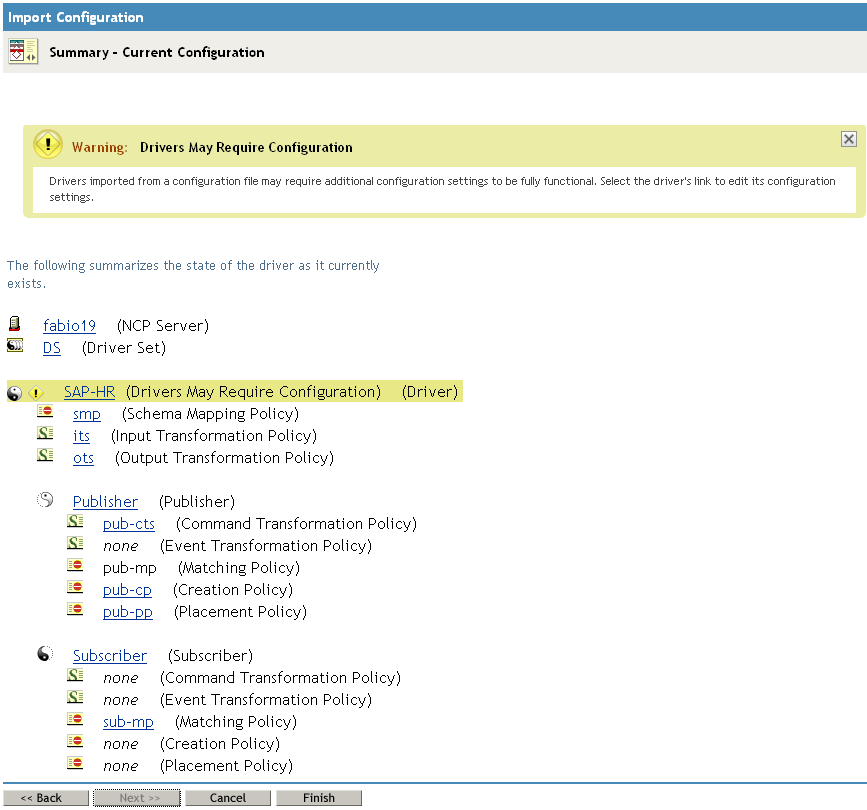
At this point, the driver is created from the basic configuration file. To ensure that the driver works the way you want it to for your environment, you must review and modify the driver’s default configuration settings.
-
To modify the default configuration settings, click the linked driver name, then continue with the next section, Configuring the Driver.
or
To skip the configuration settings at this time, click . When you are ready to configure the settings, continue Configuring the Driver.
4.3.2 Configuring the Driver
After importing the driver configuration file, you need to configure the driver before it can run. You should complete the following tasks to configure the driver:
-
Ensure that the driver can authenticate to the SAP HR system: Make sure that you’ve established an SAP HR administrative account for the driver (see Section 4.1, Creating a SAP HR Account) and that the correct authentication information, including the User ID and password, is defined for the driver parameters (see Section A.1.3, Authentication).
-
Configure the driver parameters: There are many settings that can help you customize and optimize the driver. The settings are divided into categories such as Driver Configuration, Engine Control Values, and Global Configuration Values (GCVs). Although it is important for you to understand all of the settings, your first priority should be to configure the driver parameters located on the Driver Configuration page. For information about the driver parameters, see Section A.1.5, Driver Parameters.
-
Configure the driver policies and filter: Modify the driver policies and filter to implement your business policies. For instructions, seeSection 6.0, Customizing the Driver.
Continue with the next section, Starting the Driver.
4.3.3 Starting the Driver
When a driver is created, it is stopped by default. To make the driver work, you must start the driver and cause events to occur. Identity Manager is an event-driven system, so after the driver is started, it won’t do anything until an event occurs.
To start the driver:
-
If you are using the Remote Loader with the driver, make sure the Remote Loader driver instance is running. For instructions, see
Starting the Remote Loader
in the Identity Manager 3.6.1 Remote Loader Guide. -
In iManager, click
to display the Identity Manager Administration page.
-
Click .
-
Browse to and select the driver set object that contains the driver you want to start.
-
Click the driver set name to access the Driver Set Overview page.
-
Click the upper right corner of the driver, then click .
For information about management tasks with the driver, see Section 7.0, Managing the Driver.