4.3 Adding a Driver to Driver Set
A driver provides the connection between an application and the Identity Vault. The driver is the connector that enables data synchronization and sharing between systems. A driver has two basic responsibilities: reporting data changes (events) in the application to the Identity Manager and carrying out data changes (commands) submitted by the Identity Manager to the application.
You can use Package Deployment Tool to add drivers to a driver set, which is linked to an Identity Vault.
To add a driver:
-
Click .
-
Select the stage from the drop-down list.
-
Expand the Identity Vault option, then select the check box next to the driver set where you want to add a driver.
-
Click
 .
. -
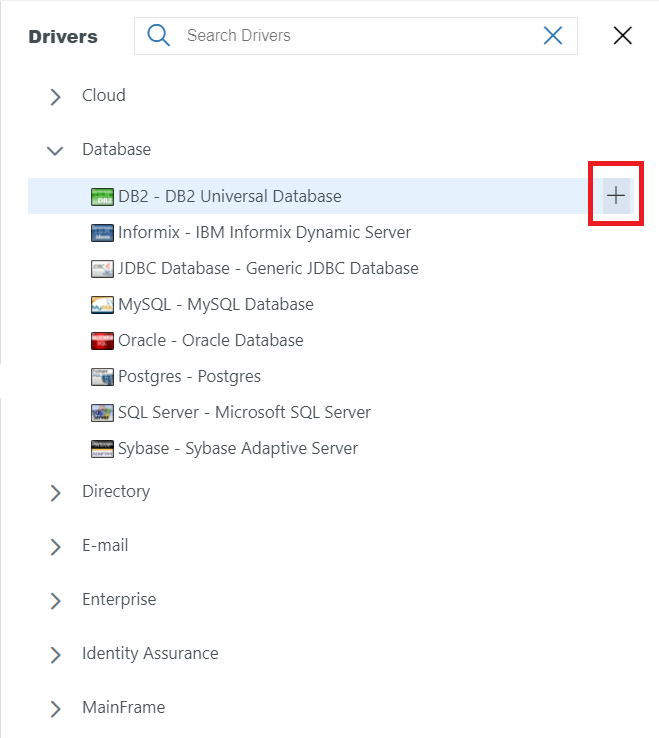
Select a required driver from the Drivers pane. To add the driver, click
next to the selected driver.HINT:You can look for a specific driver using the search option in the pane.
For example, the following figure illustrates how to add the DB2 - DB2 Universal Database driver.
-
Select the required base package version from the drop-down list, then click the check box next to the driver base package and click .
Driver base configuration packages contain the base functionality for a driver. Driver base configuration package is installed first. Only one base package can be selected.
-
Select the check box next to the required mandatory packages, then click .
If there is a feature that is required for a driver to function, but is not included in the driver base configuration package, it is added to a mandatory features package.
-
(Conditional) If you want to install any of the available optional features for the base package you selected, ensure the check box next to those packages is selected. Most options are selected by default because they are recommend for the driver.
Optional features packages contain features for a driver that are not mandatory for the driver to function.
NOTE:In most installations, you are recommended to install all optional features.
-
(Conditional) If you do not want to install a particular optional feature, clear the check box for that package.
-
Click .
-
(Conditional) If the base package requires a dependent package, PDT prompts you to install the dependent package. Select the dependent packages, then click .
-
Respond to any prompts, if necessary, then click .
These prompts are specific for each driver. Each driver guide contains the specific instructions for that driver. See the Identity Manager Driver Documentation Web site for the specific driver information.
-
Review the installation summary, then click .
After the packages are installed, the driver contains the functionality included in the packages.
After adding a driver, you can perform the following operations on a driver:
4.3.1 Viewing Installed Drivers and its Status
When there are no drivers in a driver set, the message No drivers found
will appear.
If a driver set contains drivers, you can see the driver images in the right preview pane. You can perform the following operations in the tab:
-
Click
 to sort the list of drivers in an alphabetical sequence.
 -
Click
 to refresh the page and see an updated list of drivers.
 -
Click
 to import a driver from Identity Vault.
 -
Click
 to deploy one or more drivers to Identity Vault. For more information, see Deploying a Driver Set.
 -
Click
 to search a driver by its name.
 -
Select the
 icon to compare, deploy, and delete drivers, and manage driver packages. For more information, see Driver Actions.
 -
Driver status: Hover your mouse over the driver’s status icon (the green or red circle on the driver) to view its current state. The following table can help you interpret the driver status and take required actions:
Color
Driver State
Indicates that...

Running
The driver is active and reachable.

Stopped
The driver is down and not reachable.
Starting
The driver is starting.
Not running
The driver is inactive but reachable.
Shutting down
The driver has shut down gracefully.
4.3.2 Driver Actions
The following actions are supported by clicking the icon on the individual driver’s tile:
Comparing Drivers
The Compare feature allows you to compare a driver that is used in multiple staging environments.
NOTE:You can compare any two similar drivers present in different stages within the same stage set.
You can run Compare before deploying a driver in a staging environment to a driver that already exists in the Identity Vault. Package Deployment Tool provides conflict resolution on an object-by-object basis and allows you to migrate the differences between existing and new values before deploying a driver.
To compare a driver:
-
In menu, select the driver set where the required driver is present.
-
In the tab, click
on the driver that you want to compare. -
Click .
When the selected driver is not available in other staging environments, the message
Selected driver is not available in any other stage
will appear. -
In Compare Driver window, select the Stage/Driver that is present in another stage.
-
Click .
-
Click on the driver to expand the view and see a comparison of the drivers in two stages at Base Package level.
-
(Optional) Select the required tab to compare drivers in other package categories such as Dependent Package, Mandatory Package, Featured Package, and Common Package.
-
(Optional) Click the icon to copy values from the left side driver to the right side driver. You can also manually change the values on the right side driver.
-
Click
 .
.
Deploying Drivers
Suppose you create a new driver that you want to deploy into a staging environment. Use the following procedure to deploy an Identity Manager Driver into a driver set:
-
In menu, select the driver set where the required driver is present.
-
In the tab, click
on the driver that you want to deploy. -
Click .
Deleting a Driver
When you delete a driver, it is deleted from the Package Deployment Tool, however, the driver still persists in the Identity Vault and in the driver set.
-
Click .
-
Select the stage from the drop-down list.
-
Expand the Identity Vault option, then select the required driver set.
-
In the tab, click
on the driver where you to add the package. -
Select .
-
Click .
Managing Packages
The option allows you to add a new package and manage installed packages in a staging environment. This ensures that you only have the required packages in your environment, thus improving the performance of the system.
Installing Packages
You can add new functionality to an existing driver by adding new packages to an existing Identity Vault, driver set, or driver.
-
Click .
-
Select the stage from the drop-down list.
-
Expand the Identity Vault option, then select the required driver set.
-
In the tab, click
on the driver where you to add the package. -
Select .
-
In pane, click
. -
Select the packages to install, then click . For example, the following figure shows a list of packages available for installation.
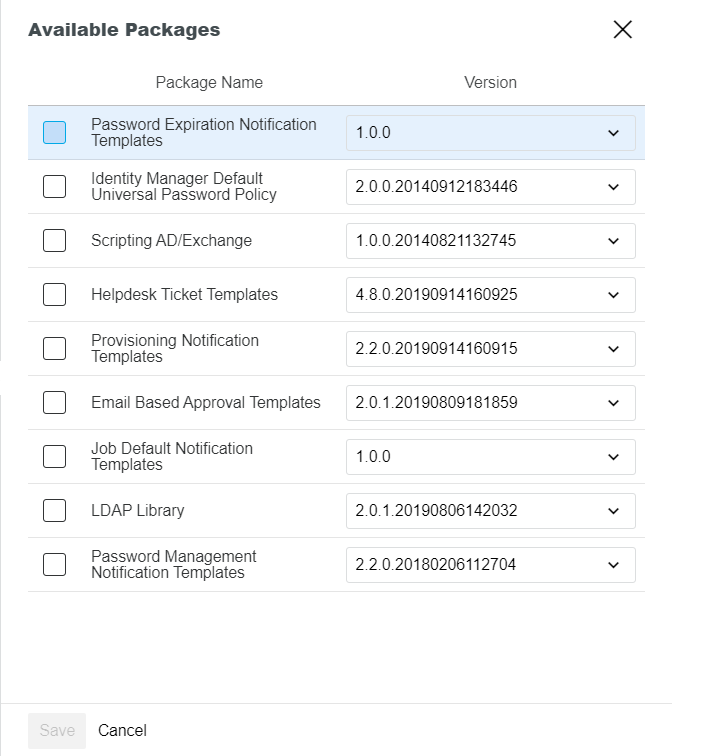
If the list is empty, there are no available packages to install.
-
The saved packages will appear in the section in Manage Packages preview pane. To add the packages, click
.NOTE:If you do not want to add the selected packages, click
 .
.
Upgrading Installed Packages
You can upgrade any package that is installed in your environment if there is a newer version of the package available.
To upgrade an installed package:
-
Click .
-
Select the stage from the drop-down list.
-
Expand the Identity Vault option, then select the required driver set.
-
In the tab, click
on the driver where you to upgrade the package. -
In the Manage Packages preview pane, click
 for the package which you want to upgrade.
 -
Select the required version from the drop-down list.
-
Click .
-
The packages will appear in the section in Manage Packages preview pane. Click
to save.
Downgrading Installed Packages
You can downgrade any package that you have upgraded. This allows you to revert the driver back to a known state for troubleshooting purposes.
To downgrade an installed package version:
-
Click .
-
Select the stage from the drop-down list.
-
Expand the Identity Vault option, then select the required driver set.
-
In the tab, click
on the driver where you to downgrade the package. -
In the Manage Packages preview pane, click
 for the package which you want to downgrade.
 -
Select the required version from the drop-down list.
-
Click .
-
The packages will appear in the section in Manage Packages preview pane. Click
to save.
Uninstalling Packages
-
Click .
-
Select the stage from the drop-down list.
-
Expand the Identity Vault option, then select the required driver set.
-
In the tab, click
on the driver where you to uninstall the package. -
In the Manage Packages preview pane, click
 for the package which you want to uninstall.
 -
The packages will appear in the section in Manage Packages preview pane. Click
to save.