13.1 Maintaining Time Categories
Time categories are used to identify important blocks of time. For example, peak hours can be defined as weekdays from 7 AM to 5 PM. Operations Center provides six default time categories, which can be customized:
- Blackout
- Critical
- Peak
- On
- Non-Peak
- Off
You can rank them by priority and select whether to enable or disable using them. By default, Blackout and Off are disabled.
To customize a time category:
-
In the pane, expand > .
-
Right-click the element, then select to open the property page.
-
In the left pane, click to open its property page:
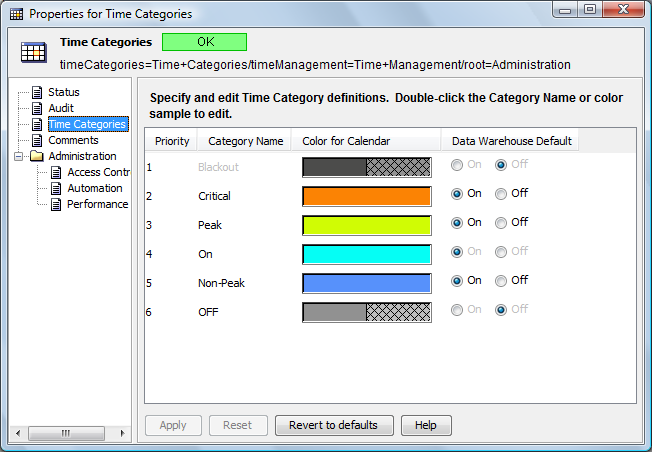
-
To change the name of a time category, double-click the name in the column, specify a new name, then click anywhere in the dialog box to save the new name.
The time category name cannot be edited.
-
To change the color, double-click the associated color box in the column to open the Select a New Color dialog box, then do one of the following:
-
Use the , , or tabs to select the new color, then click to save the new color.
-
To close the dialog box without saving the color selection, click .
-
To revert to previous color settings, click .
The Time Categories Color Selector is the same as the one used to set up the condition and severity values.
-
-
(Optional) Consider whether to collect alarm history and performance data for each time category, then do one of the following in the column:
-
Select the radio button to record alarm history and performance data in the Data Warehouse.
-
Select the radio button to disable data capture of alarm history and performance data in the Data Warehouse.
-
-
To complete the customization process, do one of the following:
-
To save new selections, click to display a confirmation dialog box, then click to save the changes.
-
To revert to the default settings, click .
-