6.7 Viewing CI History
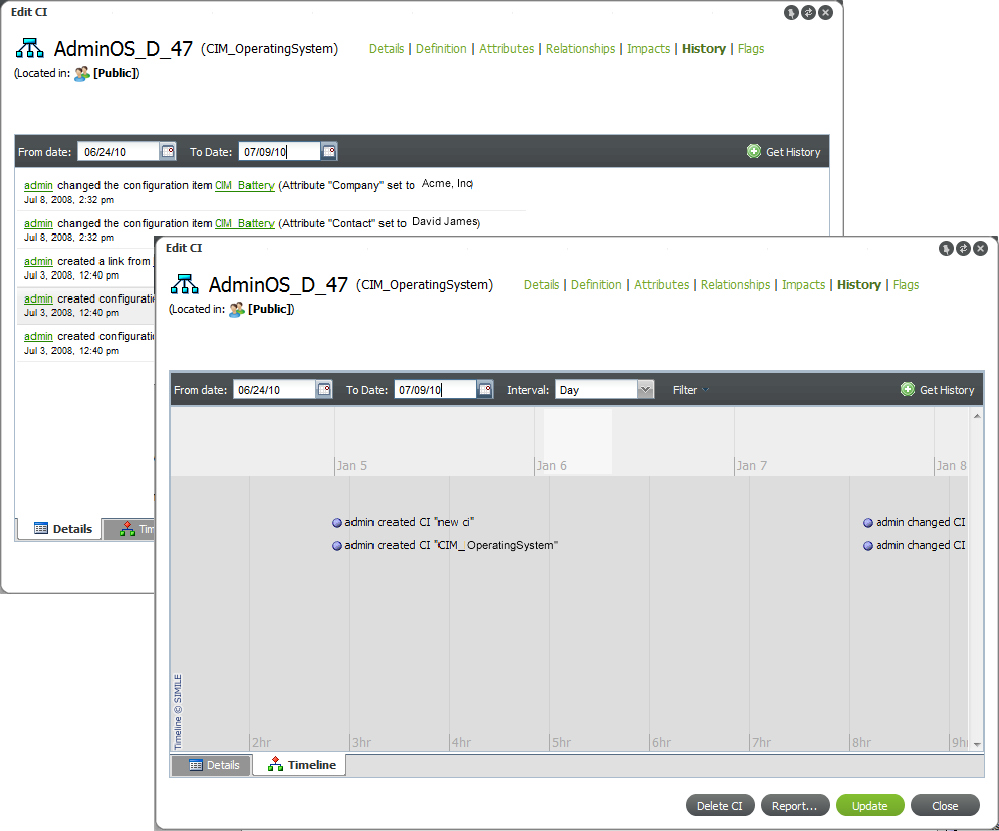
Every update or action on a CI creates an events history that can be viewed in CI Details to two ways: a tabular listing and a timeline display:
Figure 6-3 View a listing of historical events (Details tab) or browse them visually in a timeline (Timeline tab)
To view the history of a CI:
-
From the search results or the pinboard, right-click the CI, then select to open the Edit CI dialog box.
Clicking under a CI item in search results opens a viewer. To access the listing for , you must use the option on a CI.
-
Click .
-
Do either of the following:
-
To view a list of historical events, click the tab.
-
To view a timeline of events, click the tab.
-
-
Using the and calendar buttons, select the date range to poll for historical information about the CI.
The From and To dates are inclusive.
-
Click .
Matching events displays in a listing or timeline format.
HINT:After switching from the to the tab (and vice versa), click to populate the view with data.
-
On the tab, do any of the following:
-
Note the following about the tab:
-
The light grey block in the bottom timeline band indicates the section of time in focus.
-
A blue line inside the bottom timeline band indicates that there are events present.
-
-
Click and drag along the timeline to view various events.
-
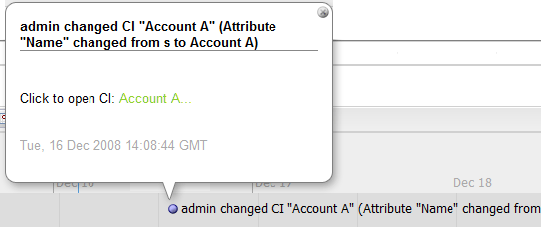
Click any event item to open event details, as shown:
-
-
To update the data viewed, change the date range, then click to retrieve a new data set.