11.10 Configuring the Organization Chart to Only Display Active Users
The Resource Kit provides the business logic for active and inactive users. You can configure the Organizational Chart and the Employee Search to only display active users.
-
In Designer, select Window > Show View > Provisioning View from the toolbar.
-
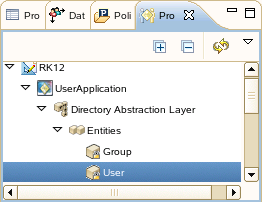
In the Provisioning view, expand the Resource Kit project to access the User Entity.
The User Entity is located RK12 > UserApplication > Directory Abstraction Layer > Entities > User.
-
Right-click User, then click .
-
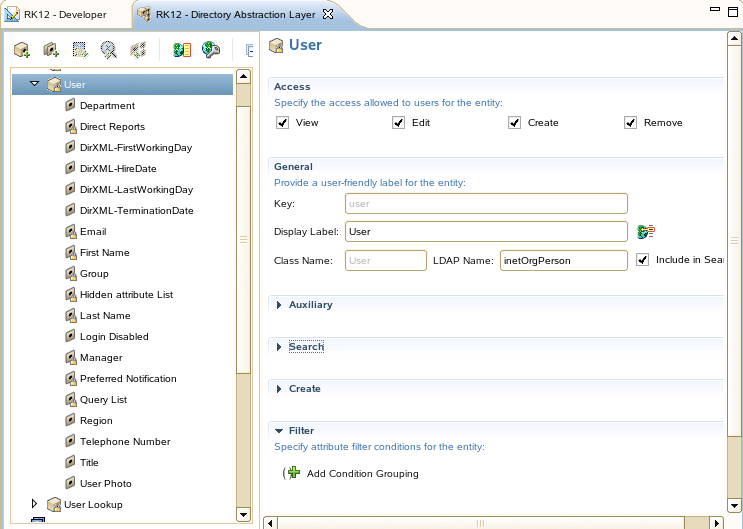
In the right pane, scroll down to the Filter heading, then select .
-
In the attribute drop-down list, browse to and select the attribute.
-
In the operators drop-down list, browse to and select .
-
Specify add active in the input field.
-
Press ctrl+S to save the changes.
-
To update the Identity Vault, deploy the saved project. For more information, see
Deploying a Project to an Identity Vault
in the Designer 3.5 for Identity Manager 3.6 Administration Guide. -
Proceed to Section 12.0, Installing and Configuring Novell Audit.