10.1 Creating a Required Password Policy
In order for the Resource Kit scenarios to work properly, you need to create a password policy.
-
Log in to iManager as admin. (https://172.17.2.117:8443/nps/iManager.html)
-
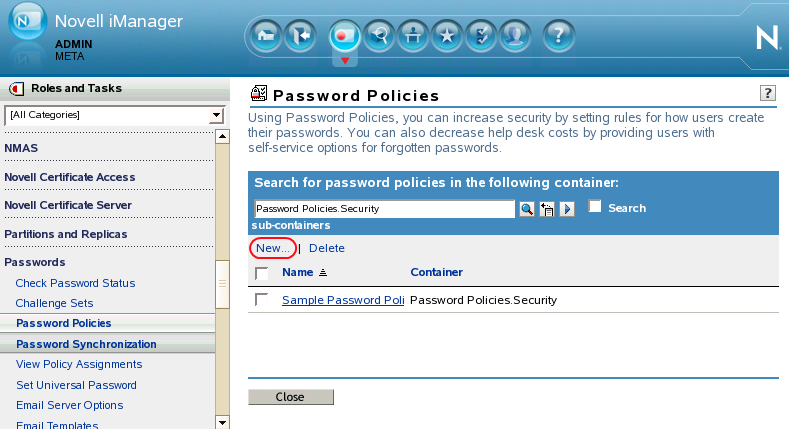
Click > , then click .
-
Leave the default value of Password Policies.Security for the container value.

-
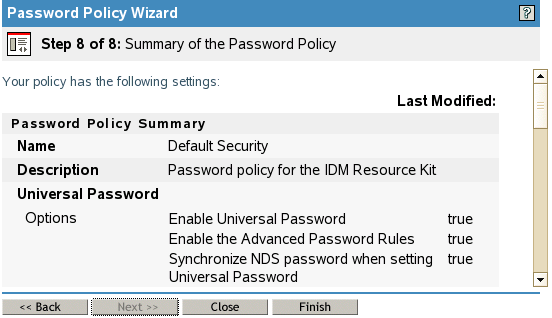
Specify Default Security in the field.

-
Specify Password policy for the Resource Kit for the.

-
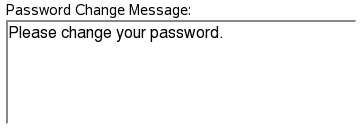
For the field, specify Please change your password.
-
Select the option to , then click .

-
Read the summary of the policy, then click .
-
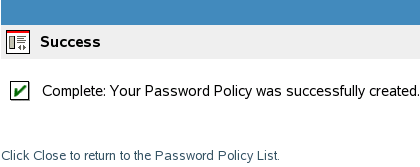
Click in the success message.
-
Click in the policy you created to edit it.
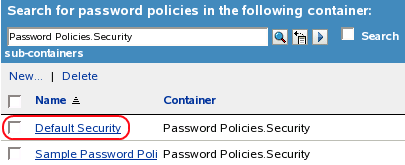
-
Click the tab, then click .
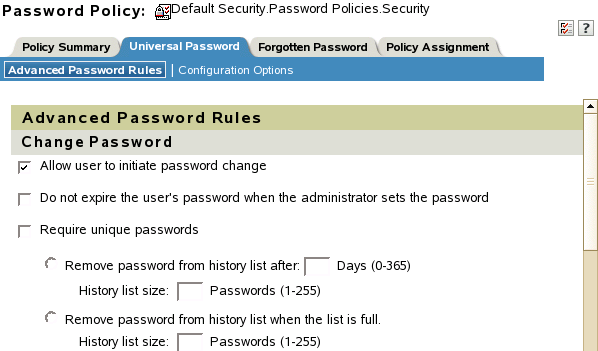
-
Verify that the following options are set:
-
Under settings, select .
-
Under settings, select .
-
Under settings, select and specify the (4) and (12).
-
Under settings, select the option.
-
Under settings, select .
-
Under settings, select and .
-
-
Click .
-
Click the tab, then click the icon.
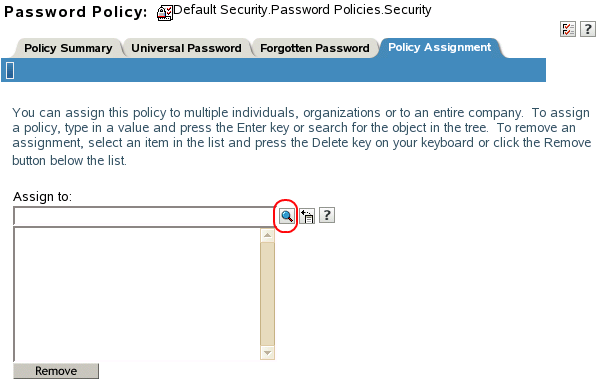
-
Browse to and select the users.company.data container for the policy assignment, then click .
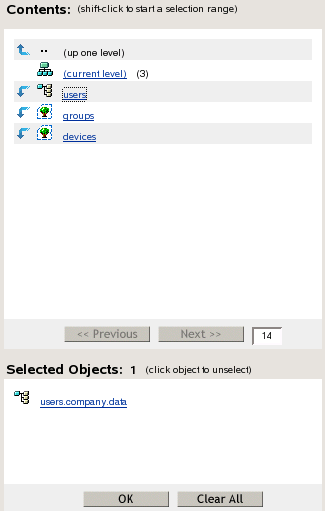
-
Click to save the change, then click to exit the Password Policy task.
-
Exit iManager.
-
Proceed to Section 10.2, Enabling the Password Expiration Notification Job.