3.5 Tuning the eDirectory Database Cache Settings
-
From within your VM, access iMonitor .
-
When prompted to , select , then click .
-
Click the link.
-
Authenticate as and use the password you chose during the eDirectory configuration process.
-
In the navigation panel, select > .
-
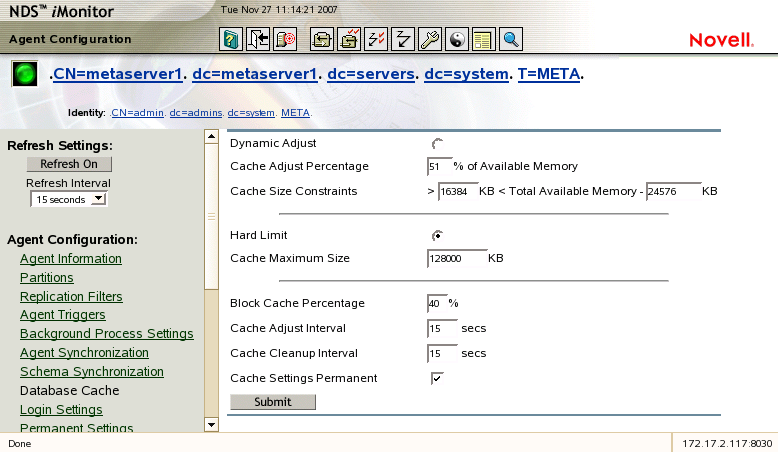
Scroll down to the Database Cache Configuration and click the button, then specify for the .
-
Set the to .
-
Select the option .
-
Select to save your changes.
-
Close your browser to exit iMonitor.
-
Proceed to Section 4.0, Installing iManager.