12.9 Making a Team Process Request
The action enables you to make process requests for team members.
-
Click in the group of actions.
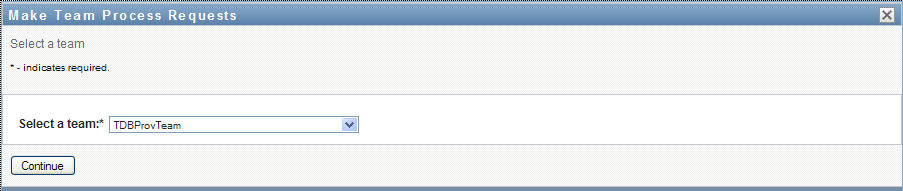
The Make Team Process Requests page is displayed.
-
Click to select a team for which you have been designated as a Team Manager. Then click .
The application displays a page that lets you pick a category.
-
Select the category of the request in the drop-down list. Select to include requests from all available categories.
-
Click .
The Make Team Process Requests page displays a list of processes that you can request. The list includes only those processes for which Team Managers are permitted to initiate requests.
-
Click a resource name to select it.
-
Click a name to select it. The team member you select is the recipient for the request.
Depending on how the team was defined, you might see an icon
 beside the selection box, instead of a list of team members. In this case, click the icon to open the Object Lookup window. Specify search criteria for the team member, clickand select the team member.
The icon will also appear, if you are a Provisioning Manager or a Provisioning Administrator. Otherwise, this icon is not available.
If the flow strategy for the workflow has been defined to support multiple recipients, the application lets you pick a group, container, or team as the recipient. Depending on how the workflow is configured, the User Application might spawn a separate workflow for each recipient (so that the request can be approved or denied independently for each recipient), or initiate a single flow that includes multiple provisioning steps, one for each recipient. In the latter case, the approval or denial of the request applies to all recipients.
-
Click .
-
The Make Team Process Request page displays the request form. Fill in the fields on the request form. In the following example, the only required field is .
The fields on the form vary according to the process you requested.
-
Click .
A workflow starts for the user.
The Make Team Process Request page displays a status message indicating whether the request was submitted successfully.
If your request requires permission from one or more individuals in an organization, the request starts one or more workflows to obtain those approvals.